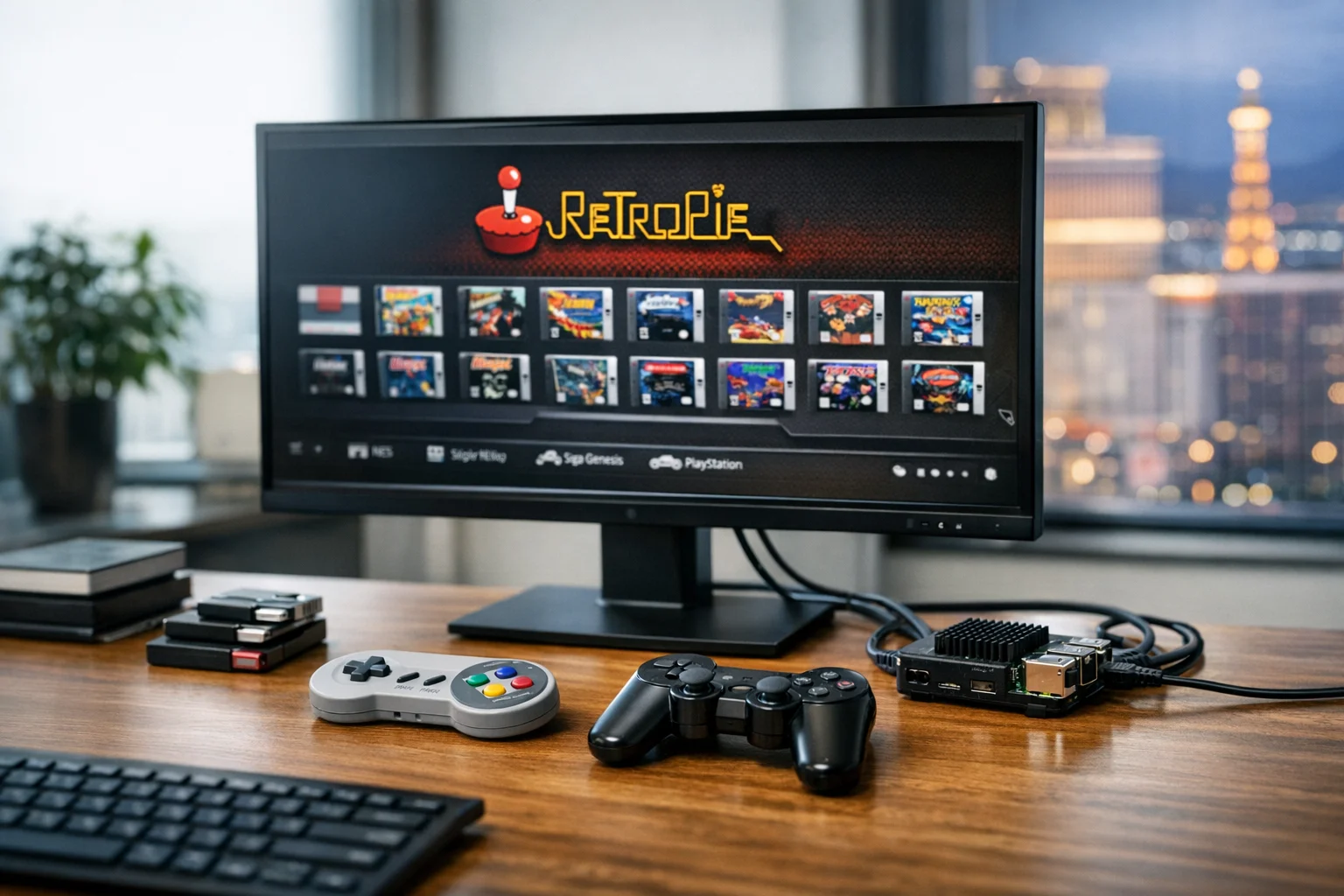
RetroPie is one of those projects that looks simple at first and gets a lot more interesting once you start using it. Installing the software is only the beginning. What most people really care about is getting games onto the system, making controllers work the way they should, and building a setup that feels polished instead of frustrating. If you are putting a RetroPie machine in a game room, office break area, trade show booth, restaurant, or branded lobby space, those details matter even more.
I’ve worked on enough Raspberry Pi projects to know how this usually goes. The install works, then the questions start. Where do the game files go? Why isn’t the controller pairing? Why do some buttons work in menus but not inside a game? Why does one system show up while another stays hidden? This guide walks through the process in a practical way so you can get from a blank RetroPie install to a setup people can actually use, without losing an afternoon to trial and error.
If you still need the base system ready, start with SiteLiftMedia’s guide on installing RetroPie on a Raspberry Pi step by step. Once RetroPie is booting properly, the next step is adding your games, connecting your controllers, and tightening up the experience.
Start with the basics before you add anything
Before copying files or pairing hardware, make sure the core setup is stable. It will save you a lot of troubleshooting later.
- Use a reliable power supply. Low power can cause strange controller disconnects and storage issues.
- Update RetroPie packages if the image is old. Newer controller support often depends on current packages.
- Confirm storage space. Arcade ROMs are small, but PlayStation and other disc-based systems can fill a card fast.
- Know which systems you’ve enabled. RetroPie only shows systems that have valid ROMs in the correct folder.
- Keep a keyboard nearby. It’s the fastest fallback when controller setup goes sideways.
If this RetroPie build is for public use, such as a Las Vegas event space, a waiting room, or a customer lounge, it is also smart to start with a fresh microSD card from a reputable brand and make a backup image before loading everything up. That sounds minor until you have a booth opening in the morning and the card decides to corrupt the night before.
Make sure your game files are legal and in the right format
RetroPie uses ROMs, ISOs, and other game file formats depending on the system you’re emulating. The legal side is simple. You should only use game files you have the right to use. A lot of people skip over that part, but if you are building a system for a business location, event activation, or public-facing installation, it matters.
From a practical standpoint, the file format matters just as much as the game itself. A Super Nintendo ROM will not work in the PlayStation folder, and a zipped arcade set may behave differently depending on the emulator core you’re using. When something fails to appear in EmulationStation, the issue is usually one of these:
- The file is in the wrong system folder
- The extension is not supported by that emulator
- The ROM set version does not match the arcade emulator core
- The file transfer did not complete correctly
If you’re adding a handful of classic console games, the process is usually painless. Arcade and CD-based systems take a little more care.
Three practical ways to add games to RetroPie
There are several ways to transfer games to a RetroPie system. The best method depends on how your device is set up, whether it is already on the network, and how many files you need to move.
1. Add games with a USB drive
This is one of the easiest methods for beginners, and still one of my favorites when I want a quick, clean transfer.
- Format a USB drive as FAT32 or exFAT if your RetroPie build supports it
- Create a folder on the drive called retropie
- Plug the USB drive into the powered-on RetroPie system
- Wait for RetroPie to create the ROM folder structure on the drive
- Remove the USB drive and connect it to your computer
- Open the newly created retropie/roms folders
- Copy your game files into the correct system folders
- Plug the USB drive back into RetroPie and wait for the files to transfer
The transfer can take a few minutes, especially with larger disc images. Don’t pull the drive too early. When the copy is finished, restart EmulationStation or reboot the Raspberry Pi.
This method is especially handy if the RetroPie box will not stay on your office network full time. For event teams and small business owners, it also keeps the process simple enough that someone on staff can update a game list without logging into the system directly.
2. Transfer games over your network
If your RetroPie device is connected to Wi-Fi or Ethernet, network transfer is faster and more flexible. On most RetroPie installs, you can access shared folders from a Windows or macOS machine.
On Windows, open File Explorer and enter:
\\retropie
You should see shared folders including roms. Open that folder, then copy games into the correct system directories.
You can also use SFTP if you prefer a more direct file transfer tool. Apps like WinSCP, Cyberduck, or FileZilla work well. Connect using the RetroPie device IP address, then browse to:
/home/pi/RetroPie/roms
This is my preferred option when I’m moving a larger batch of files or checking permissions at the same time. It is also useful if the system is tucked inside a cabinet and you don’t want to keep opening it just to reach the microSD card.
3. Copy games directly to the microSD card
This can work, but I only recommend it if the system is offline or you are rebuilding from scratch. Depending on your computer, accessing Linux partitions can be less convenient than using a USB drive or network transfer. It is also easier to make mistakes if you are not careful.
If the RetroPie machine is part of a larger custom arcade build, SiteLiftMedia’s article on building a RetroPie arcade system at home is worth reading too. It covers the broader hardware side so you are not treating game transfer and cabinet wiring like two separate projects.
Put games in the correct folders or they won’t show up
RetroPie organizes games by system. Each console or arcade platform has its own folder inside the ROM directory. A few examples:
- nes for Nintendo Entertainment System
- snes for Super Nintendo
- genesis or megadrive depending on setup
- psx for original PlayStation
- mame-libretro or other arcade folders depending on the emulator
After copying files, restart EmulationStation. If a system still doesn’t appear, double-check the folder name and extension. RetroPie is forgiving in some places and very picky in others. Arcade platforms are usually the biggest source of confusion because emulator cores often expect specific ROM set versions.
For business installs, I prefer keeping the game list tight instead of dumping hundreds of titles onto the system. A smaller, curated set feels more intentional and makes the interface easier for guests to use. If you are putting a RetroPie station in a hospitality venue, a retail location, or a Las Vegas showroom, clean presentation beats clutter every time.
How to refresh the interface and artwork after adding games
Once ROMs are in place, restart EmulationStation so RetroPie rescans the folders. That alone usually makes new systems appear. If you want the setup to look polished, add artwork and metadata through a scraper. This downloads box art, game descriptions, release years, and other details.
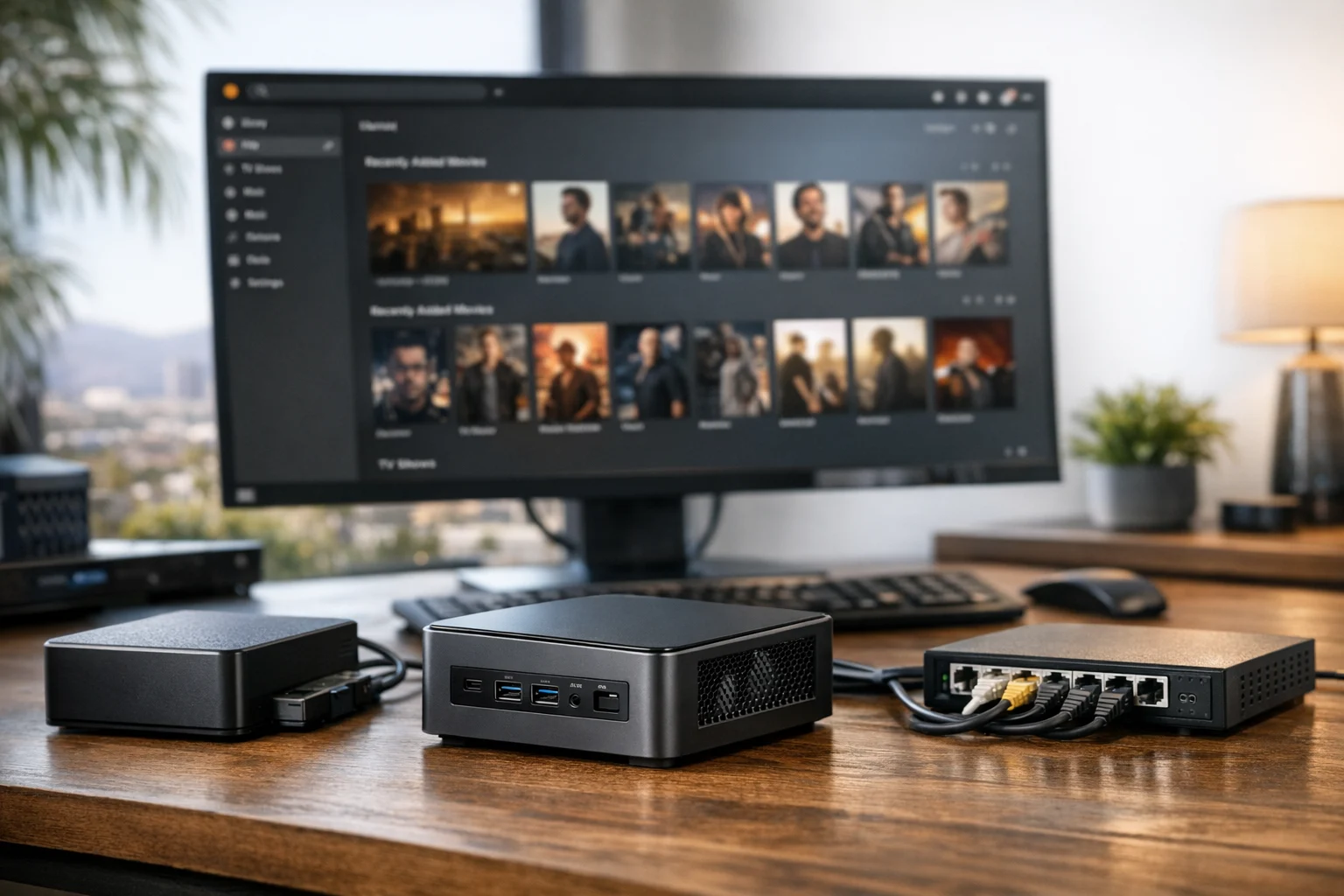
Scraping is optional, but it improves the experience quite a bit. It turns a plain file list into something that feels more like a finished media interface. That matters when the setup is visible to customers, employees, or event guests.
If you are using RetroPie as part of a branded environment, that extra polish goes a long way. The same reason businesses invest in custom web design, website maintenance, and strong visual presentation applies here too. Small usability details shape how people judge the entire experience.
How to add wired controllers to RetroPie
Wired USB controllers are usually the fastest path to a stable setup. Plug the controller in, wait a few seconds, and EmulationStation should prompt you to configure it. Hold any button on the controller to begin mapping.
You’ll be asked to assign inputs like up, down, left, right, A, B, X, Y, start, and select. If the controller doesn’t have one of the requested buttons, you can usually hold a button down to skip that input.
Here’s the part people often miss. RetroPie has more than one layer of controller behavior.
- EmulationStation mapping controls menu navigation
- RetroArch mapping controls behavior inside many emulators
- Individual emulator settings may override both for certain systems
If the controller works in the menu but not in a specific game, the problem is usually inside the emulator core or a per-game config, not the initial EmulationStation setup.
For most standard USB gamepads, RetroPie handles things well. Problems are more common with generic controllers that report unusual button layouts, especially very cheap no-name pads.
How to pair Bluetooth controllers
Bluetooth controllers are convenient, but they are also more likely to cause headaches. If you want a RetroPie setup that guests can use without supervision, wired is still my first recommendation. That said, Bluetooth works well once it is paired properly.
To add a Bluetooth controller:
- Open the RetroPie configuration menu
- Go to Bluetooth
- Choose the option to register and connect a Bluetooth device
- Put the controller into pairing mode
- Select the controller when it appears
- Use the recommended security mode shown by RetroPie, which varies by controller type
- After pairing, return to EmulationStation and configure the controller inputs
Some controllers reconnect automatically on reboot, while others need a manual nudge. PlayStation and Xbox-style controllers can behave differently depending on model, firmware, and whether you are using official hardware or third-party variants.
If pairing keeps failing, check these issues first:
- The controller is still paired to another device nearby
- The Raspberry Pi Bluetooth stack needs an update
- The controller battery is low
- You selected the wrong pairing mode
- The built-in Bluetooth chip has weak range inside a metal cabinet
For arcade cabinets and public spaces, I usually avoid Bluetooth unless there is a strong reason to use it. A wired connection is less elegant, but much more dependable.
Set up hotkeys so users can exit games cleanly
One of the best things you can do after mapping a controller is assign a hotkey button. In many RetroPie setups, this is the Select button. Combined with another input, it can perform actions like:
- Exit the current game
- Save state
- Load state
- Open the RetroArch menu
- Reset the emulator
Without a hotkey, people often yank the power or get stuck in a game with no obvious way back to the main menu. That becomes a real problem in customer-facing setups. I’ve seen otherwise solid arcade builds feel broken simply because users had no clear way to exit.
If you are deploying a RetroPie machine in a business setting, keep the controls intuitive. Label the physical buttons if needed. A small printed instruction card beside the machine can save your staff a lot of interruptions.
How to handle multiple controllers and player order
RetroPie can support multiple controllers, but player assignment is not always as automatic as people expect. Sometimes Player 1 and Player 2 switch positions after a reboot or after reconnecting Bluetooth pads.
To keep things orderly:
- Plug controllers in before launching games
- Use identical controller models when possible
- Set controller order inside RetroArch if needed
- Avoid unplugging and reconnecting devices mid-session
- For arcade builds, use fixed USB ports and don’t move them
If you are using USB encoder boards for arcade buttons and joysticks, make sure each encoder is recognized correctly. Some encoder boards identify themselves too similarly, which can create inconsistent player mapping. In that case, testing and labeling each connection makes a real difference.
Common RetroPie controller and game issues, and the fast fixes
Games are not showing up
- Check the ROM folder name
- Confirm the file extension is supported
- Restart EmulationStation
- Verify the transfer actually completed
Controller works in the menu but not in games
- Open RetroArch input settings
- Check for emulator-specific config overrides
- Remap the controller and save core or content settings carefully
Bluetooth controller will not reconnect
- Remove the pairing and re-add the device
- Update RetroPie packages
- Power-cycle the controller fully
- Use a stronger Bluetooth adapter if the case blocks the signal
Arcade ROMs fail to launch
- Confirm the ROM set matches the emulator core
- Try another arcade emulator available in RetroPie
- Check whether BIOS files are required
Input lag or missed button presses
- Use a quality power supply
- Switch from Bluetooth to wired
- Test with a different USB controller
- Reduce background services and unnecessary overlays
This is where a little hands-on patience helps. Most RetroPie problems are not catastrophic. Usually, it comes down to one wrong folder, one odd pairing step, or one controller that was never worth buying in the first place.
Why this matters for business owners and marketing teams
At first glance, RetroPie sounds like a hobby topic, but there are real business uses for it. We’ve seen retro game stations used in office lounges, hospitality waiting areas, trade show booths, pop-up activations, internal culture events, and brand experiences built around nostalgia. A well-executed setup gives people something interactive to do and something memorable to talk about.
That matters even more in a market like Las Vegas, where presentation, reliability, and foot-traffic engagement matter. A local business may come to SiteLiftMedia looking for Las Vegas SEO, local SEO Las Vegas strategy, or a web design Las Vegas refresh, then realize they also need better in-person experiences for events and customer spaces. The same operational mindset applies across all of it: clean setup, strong user experience, dependable infrastructure, and fewer avoidable failures.
That is also why our work does not stop at websites. Businesses often need technical SEO, custom web design, social media marketing support, backlink building services, website maintenance, system administration, server hardening, cybersecurity services, penetration testing, and business website security. If you are planning a spring marketing push, redesign planning, content expansion, or infrastructure cleanup, it helps to work with a team that can look at digital and physical touchpoints together.
Even a simple RetroPie project benefits from that kind of thinking. If the machine is going into a client-facing space, you want stable power, neat cable management, a secure network, and hardware that won’t fail mid-event. Those are the same habits behind smart system administration and practical cybersecurity.
Build a setup people can actually use
The best RetroPie system is not the one with the biggest ROM library. It is the one that starts quickly, shows the right games, recognizes the controller every time, and gives users a clear path in and out of each game. Keep the library focused, test every controller profile, and treat the interface like a real product instead of a weekend experiment.
If you want help building a polished RetroPie experience for a showroom, event, office, or branded space, or if your business also needs support with Las Vegas SEO, technical SEO, web design, cybersecurity services, or website maintenance, contact SiteLiftMedia. Get the hardware stable, keep the game list intentional, and make sure the setup works as smoothly in front of guests as it does on your bench.
Photo Gallery