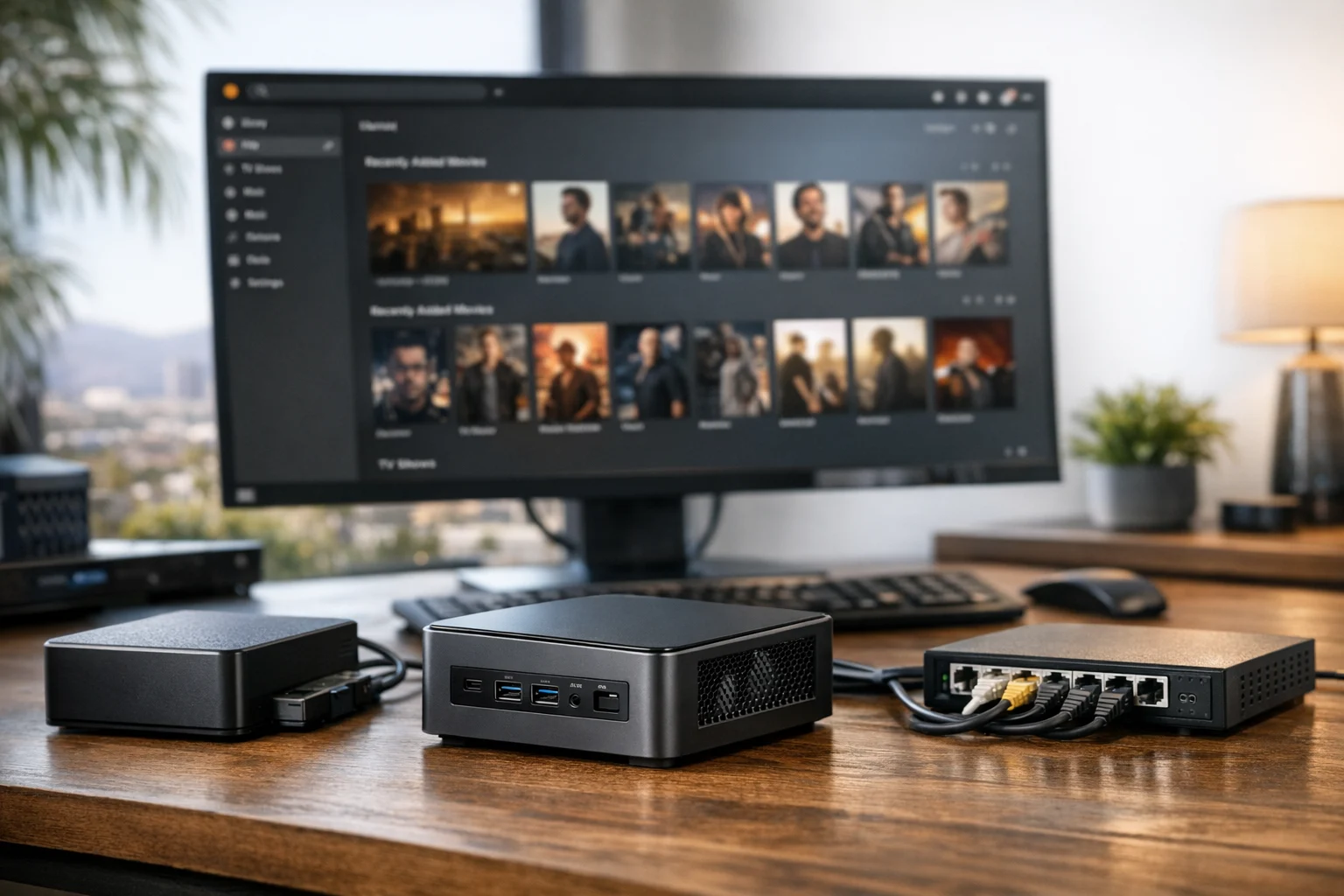
Running Plex on a home server or mini PC is one of the most practical ways to build a private streaming setup that still feels polished. You control the library, the hardware, the storage, and the long term cost. No monthly platform shuffle, no disappearing media, and no wondering whether internet speed alone is enough to keep everything running smoothly.
At SiteLiftMedia, we spend a lot of time helping clients make smart decisions about digital infrastructure. Much of that work is public facing, including web design Las Vegas projects, technical SEO cleanup, website maintenance, and business website security. The same principles apply inside a home office or small business environment. Good hardware choices, clean system administration, reliable networking, and sensible server hardening matter whether you are launching a marketing site or setting up a Plex box in your office.
If you are a business owner, marketing manager, or decision maker, there is another reason this matters. A Plex server is often someone’s first real self hosted service. It gives you hands on experience with compute, storage, networking, remote access, and cybersecurity services in a way that is far more useful than reading another generic explainer. Once you have gone through that process, conversations around hosting, penetration testing, infrastructure cleanup, and managed support become much easier.
Here is how to run Plex on a home server or mini PC without overspending or ending up with a fragile setup you will regret later.
Choose the right Plex hardware first
The biggest mistake people make is starting with the wrong box. Plex itself is not very demanding if every device can direct play your files. It gets demanding quickly when the server has to transcode video, especially 4K content, high bitrate files, or multiple streams at the same time.
When a mini PC makes the most sense
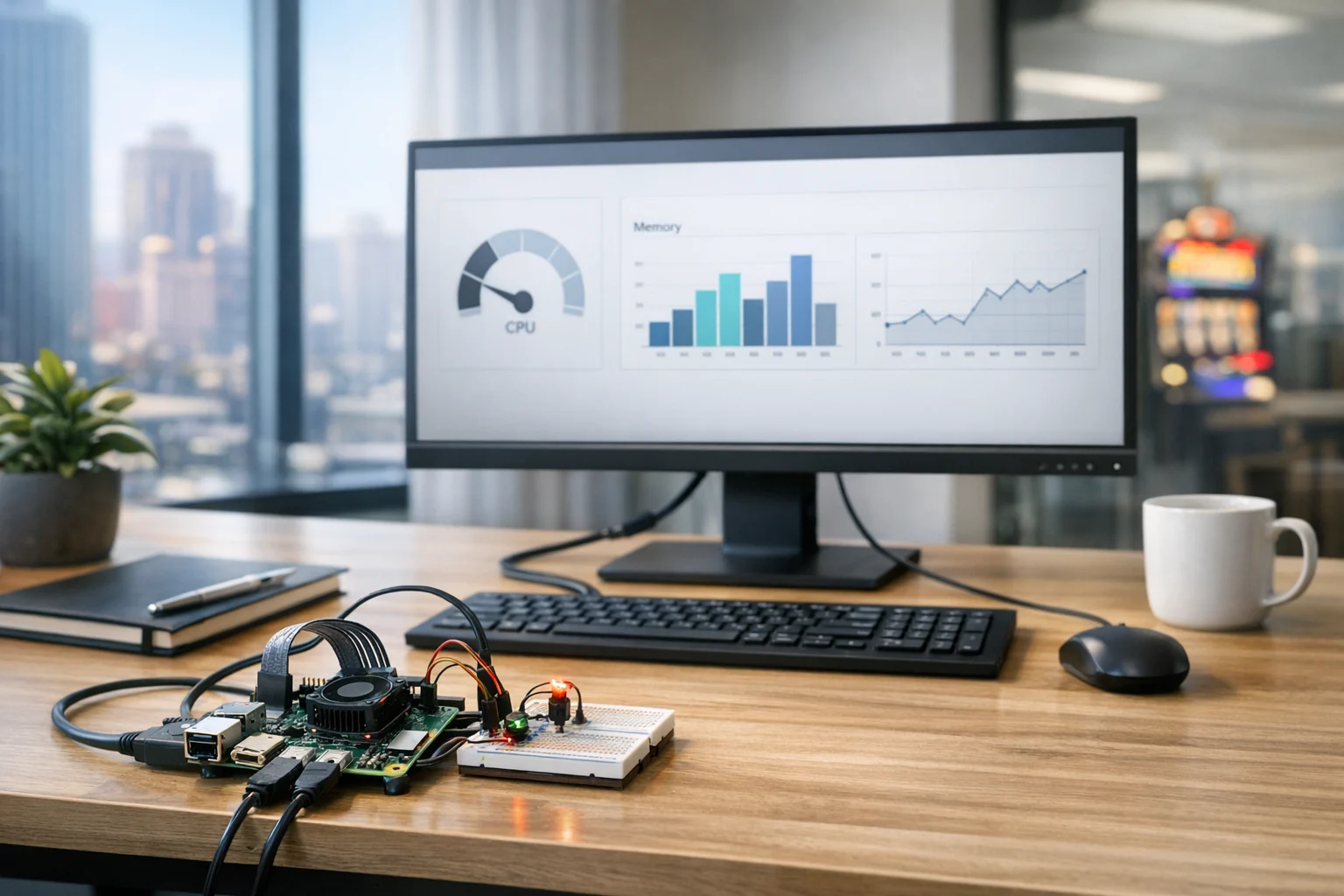
A mini PC is usually the best place to start. It is compact, energy efficient, quiet, and easy to tuck onto a shelf or into an office. If you want a clean setup with enough power for day to day Plex use, a modern Intel based mini PC is hard to beat.
- Best for: small to medium libraries, local streaming, light remote access, a couple of users at a time
- Ideal CPU: recent Intel Core i3, i5, or low power Intel N series with Quick Sync support
- RAM: 8 GB is fine, 16 GB gives you more breathing room
- Boot drive: SSD only
Intel Quick Sync matters because hardware transcoding takes a lot of pressure off the CPU. That means smoother playback and lower power use. If you expect family members to stream remotely or use older devices that cannot direct play everything, that feature is worth prioritizing.
When a home server is the better move
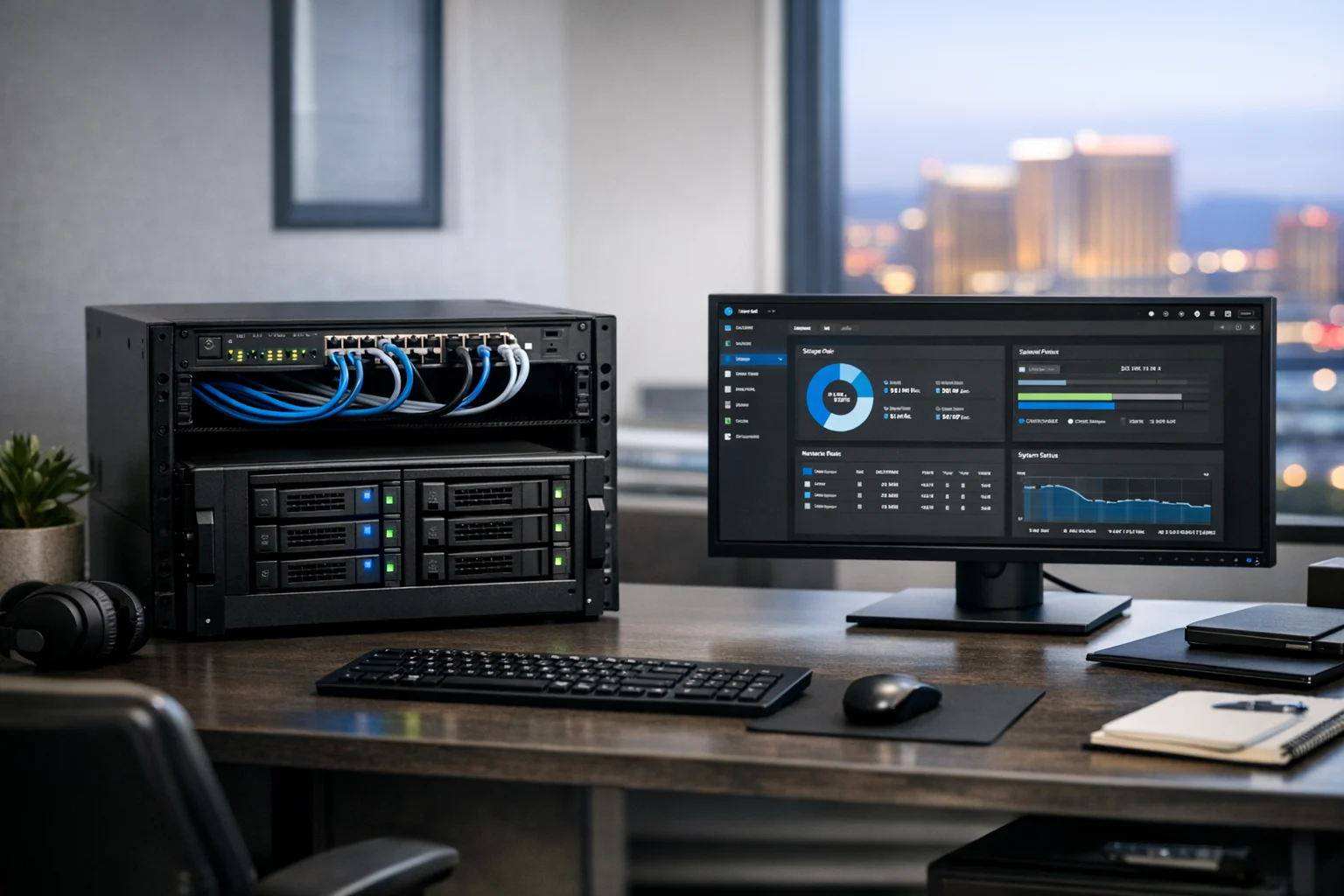
A full home server makes sense when you want room to grow. Maybe you want a larger media library, multiple hard drives, redundancy, virtual machines, Docker containers, or a home lab that goes beyond Plex.
- Best for: large libraries, RAID or storage pools, multi service home labs, heavier remote streaming
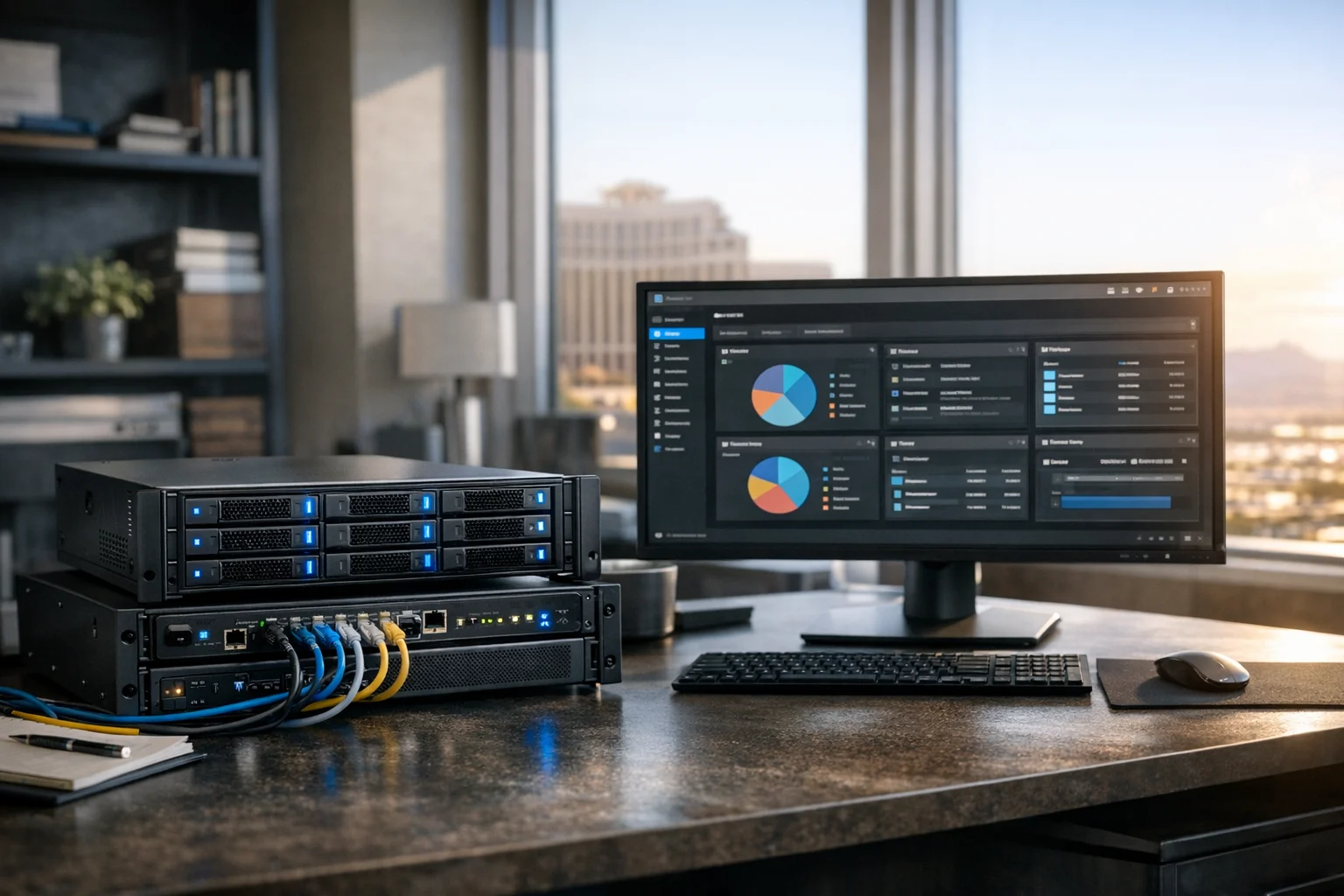
- Good fit: custom tower, used workstation, rackmount system, or a dedicated NAS plus Plex host
- Key advantage: more drive bays, better expansion, easier long term maintenance
If you are already thinking about Proxmox, containers, or a broader internal lab, a dedicated server can be the smarter long term investment. SiteLiftMedia sees the same pattern in business environments all the time. People buy for today, then hit limits six months later. Planning ahead usually costs less.
Decide where your media will live
Plex needs two things to work well: fast application storage and dependable media storage. Do not treat those as the same thing.
Your operating system and Plex database should live on an SSD. Your movies, shows, music, and backups can live on larger hard drives or network storage. Keeping those separate improves responsiveness and makes maintenance easier.
Common storage options
- Internal SSD plus internal HDD: simple and cost effective for one machine
- External USB drives: fine for beginners, but less elegant and less reliable over time
- NAS storage: a good option if you want centralized files for multiple services
- Storage pools: useful for larger libraries and better data protection planning
If your library is going to grow, think through your drive layout before importing a lot of media. SiteLiftMedia covered this in more detail in How to Choose Storage for a Growing Plex Media Server. It is worth reading before you fill a small drive and end up moving terabytes later.
For people building a more serious storage backend, TrueNAS is a solid option. If you want a deeper walkthrough on that side of the stack, How to Use TrueNAS for a Reliable Home Lab Storage Server is a useful companion piece.
Pick your operating system and install Plex cleanly
You can run Plex on Windows, Linux, macOS, some NAS platforms, and inside containers. For most home server and mini PC setups, one of these paths makes the most sense:
- Windows: easiest for many beginners, especially if you already know the interface
- Ubuntu or Debian: stable, efficient, and excellent for long term server use
- Proxmox host with Plex VM or container: great for advanced users who want flexibility
If this is your first self hosted service, keep it simple. A dedicated mini PC running Ubuntu or Windows with Plex Media Server installed directly is a clean, low friction approach.
Basic installation flow
- Install your OS on the SSD
- Apply all updates before adding Plex
- Create a dedicated admin account and a standard user if appropriate
- Install Plex Media Server from the official Plex source
- Point Plex to your media folders
- Let it scan and pull metadata
- Test playback on your main TV, laptop, and phone
If you are using Linux, mount your storage consistently so path changes do not break your library later. If you are using Windows, make sure your drive letters stay stable. Small details like that can save hours of repair work.
For advanced setups, running Plex in a virtualized environment can work extremely well, especially if you want separation between services. If you are building a broader lab, How to Set Up Proxmox for a Small Business Home Lab can help you map out the next phase.
Set up your Plex libraries the right way
Plex works much better when your files are named and organized properly. It sounds boring until you are dealing with duplicate titles, bad posters, wrong episode matches, and metadata chaos across the library.
Use separate folders by content type
- Movies
- TV Shows
- Music
- Home Videos
Inside each folder, follow Plex naming conventions as closely as possible. TV episodes should include season and episode numbers. Movies should usually include the release year. That alone fixes a surprising number of issues.
If your library is already messy, this guide from SiteLiftMedia is a good next step: How to Organize Plex Libraries for Better Streaming.
Also pay attention to permissions. Plex needs reliable read access to every media folder. On Linux, that means checking ownership and group permissions carefully. On Windows, make sure the Plex service account can reach the storage location.
Optimize your network before blaming Plex
A lot of Plex complaints are really network problems. If local playback stutters, buffers, or takes forever to start, the first thing to check is the network path between your server and the playback device.
Best network practices for Plex
- Use wired Ethernet for the Plex server whenever possible
- Use wired connections for smart TVs or streaming boxes if available
- Place Wi Fi access points strategically, especially in larger homes
- Avoid relying on a weak ISP router if you have many devices
- Give the Plex server a static IP or DHCP reservation
If you are in a larger Las Vegas home, a detached office, or a property with dead zones, Wi Fi performance can fall off quickly. We see similar issues in local SEO Las Vegas projects when a client’s office network is unstable and even basic uploads or content updates suffer. Infrastructure is infrastructure. Bad networking eventually ruins everything.
If your media is local but playback still feels inconsistent, this article will help: How to Improve Plex Streaming on Your Local Network.
Enable hardware transcoding if your setup supports it
Hardware transcoding can be the difference between a smooth Plex experience and a server that sounds like it is about to take off. If your CPU supports Intel Quick Sync or you have a compatible GPU setup, enable it in Plex.
This is especially useful when:
- Users stream remotely on mixed devices
- Bandwidth changes often
- You have subtitle formats that trigger transcoding
- 4K files need to be converted for playback on lower end devices
Plex Pass is usually required for full hardware transcoding features. For many users, it is worth it. Just do not assume hardware acceleration fixes every issue. If your files are poorly optimized, your network is weak, or your storage is fragmented and overloaded, transcoding alone will not save the setup.
Configure remote access carefully
One of Plex’s biggest strengths is remote streaming, but this is also where people start opening ports without thinking through the security side.
The basic idea is simple. Plex needs a route from the public internet to your server. Usually that means router configuration, port forwarding, and making sure your ISP is not interfering with inbound connections. If your internet provider uses carrier grade NAT, you may need a workaround.
Remote access checklist
- Reserve a static local IP for the server
- Forward the correct Plex port on your router
- Verify the Plex remote access status in the server dashboard
- Use a strong Plex account password
- Enable two factor authentication
- Keep the server and OS fully patched
Be realistic about who needs access. If it is only you and a couple of family members, keep it tight. If this server sits in a home office that also touches client files, marketing assets, or business systems, segmentation matters even more.
Do not ignore security and server hardening
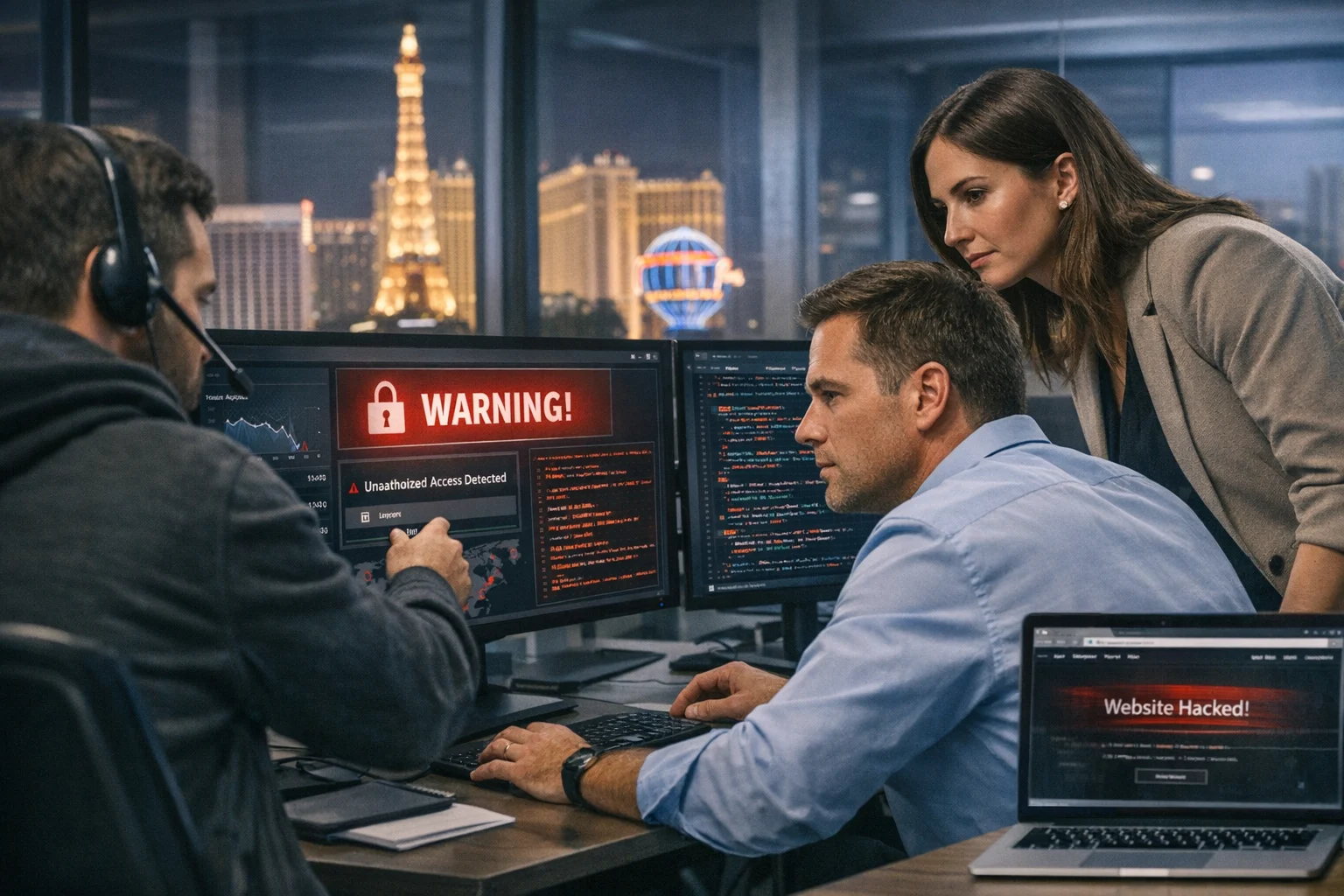
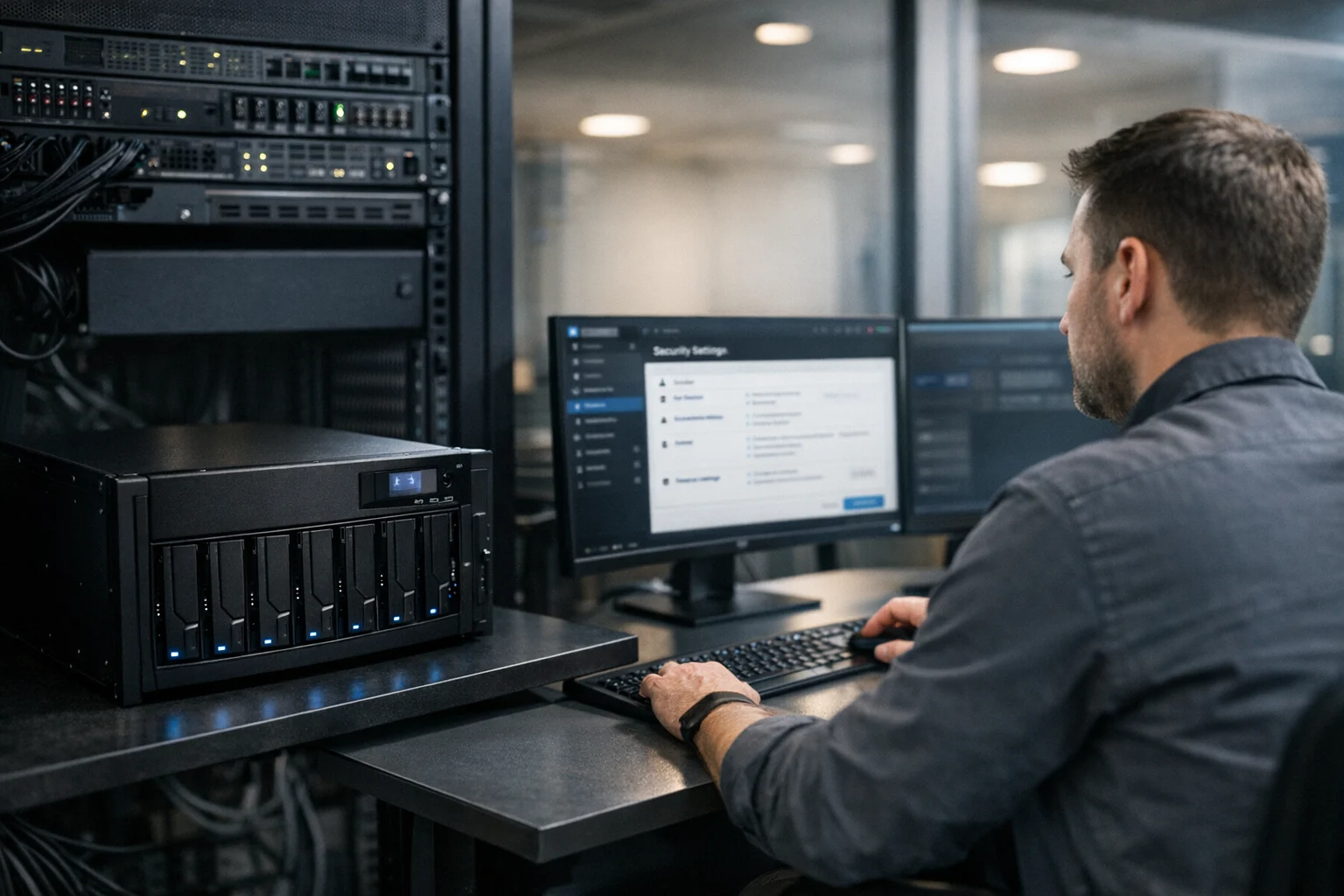
This is where a hobby project starts acting like a real server. Even if the box mainly exists for media, it still sits on your network, stores data, and may be exposed to the internet.
At SiteLiftMedia, we deal with the public side of security all the time through website maintenance, business website security, server hardening, and broader cybersecurity services. The same mindset belongs here. If you would not leave a business application unpatched and overexposed, do not do it with your Plex machine either.
Minimum Plex server hardening steps
- Keep the OS updated
- Keep Plex updated
- Disable unused services
- Use strong unique passwords
- Enable firewall rules instead of opening everything
- Separate media storage from sensitive business files
- Back up Plex metadata and important configuration
- Review logs occasionally for failed access attempts or odd behavior
If your Plex host is part of a bigger lab, go a step further. Use VLANs if you know how. Limit administrative access. Avoid running random containers you barely understand on the same machine. Convenience is great until it turns into a cleanup project.
For business owners in Las Vegas and nationwide, that lesson carries over directly into production environments. The same company that needs an SEO company Las Vegas partner, custom web design support, or backlink building services often also needs cleaner infrastructure and smarter access policies behind the scenes.
Plan for maintenance before problems show up
Plex is easy to start and easy to neglect. Six months later, you have a bloated metadata database, failing USB drives, inconsistent backups, and a server that restarts at the worst possible moment.
A simple maintenance routine goes a long way:
- Check drive health monthly
- Install updates on a schedule
- Review available storage before you hit critical limits
- Back up the Plex database and server config
- Clean up bad metadata matches and duplicate files
- Test playback from at least one local and one remote device
If you are using your Plex setup as part of a broader self hosting environment, document it. Write down IP addresses, mount points, credential storage methods, port mappings, and library locations. Good documentation is underrated in both home labs and real operations.
Know when a mini PC is enough and when it is time to scale
Many people can run Plex happily on a decent mini PC for years. There is no prize for overbuilding on day one. There are, however, some clear signs that it is time to scale up:
- Your library is outgrowing attached drives
- You need redundancy and backup discipline
- You serve multiple users at once
- You want other services on the same infrastructure
- You are troubleshooting around hardware limits every month
At that point, moving to a fuller server stack or separating storage and compute starts to make sense. This is the same planning mindset we use when clients come to SiteLiftMedia for redesign planning, spring marketing pushes, content expansion, or technical SEO remediation. You do not wait until things are breaking badly. You upgrade before friction starts costing time and money.
Why business decision makers should care about a Plex project
On the surface, Plex looks unrelated to agency work. In reality, it is an approachable way to understand the technical foundations behind digital operations. Once you have dealt with storage bottlenecks, device compatibility, remote access, uptime, permissions, and security on a small Plex server, conversations about hosting, app development, system administration, or penetration testing feel much more concrete.
That matters for growing companies. The same leadership team evaluating social media marketing, web design Las Vegas support, or local SEO Las Vegas strategy is often also trying to make smarter decisions about internal systems, media assets, backups, and operational resilience.
If you are based in Las Vegas, there is another practical layer. Many local businesses are running lean, hybrid, and fast. They need technology that is simple, resilient, and easy to maintain. Whether that is a Plex server in a home office, a cleaned up local network, or a fully secured website stack, the principle stays the same: buy thoughtfully, configure it correctly, and maintain it before issues pile up.
What I would do for a clean Plex setup today
If I were setting up Plex from scratch for a reliable home or office adjacent environment, I would keep it straightforward:
- Choose a recent Intel mini PC with Quick Sync
- Install the OS on an SSD
- Store media on separate large drives or a NAS
- Use wired Ethernet
- Organize media folders properly from day one
- Enable hardware transcoding if needed
- Secure remote access with strong credentials and updates
- Back up metadata and monitor storage growth
If you are building out home lab infrastructure, cleaning up networking, or thinking more broadly about the digital systems that support your business, SiteLiftMedia can help. We work with companies in Las Vegas and across the country on everything from technical SEO and custom web design to system administration, cybersecurity services, and infrastructure planning. If you want a second set of eyes on your setup, reach out to SiteLiftMedia and get it built the right way from the start.
Photo Gallery