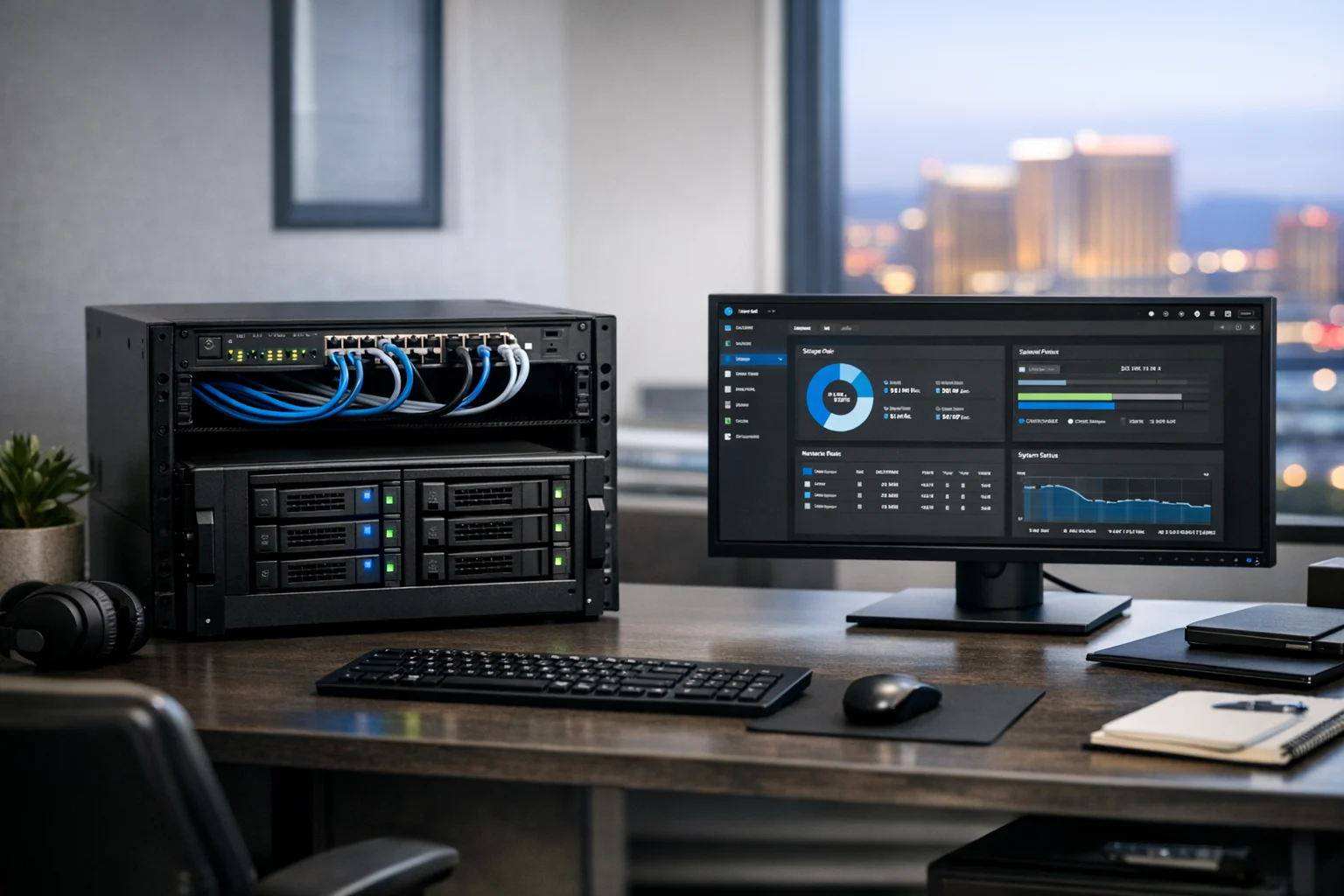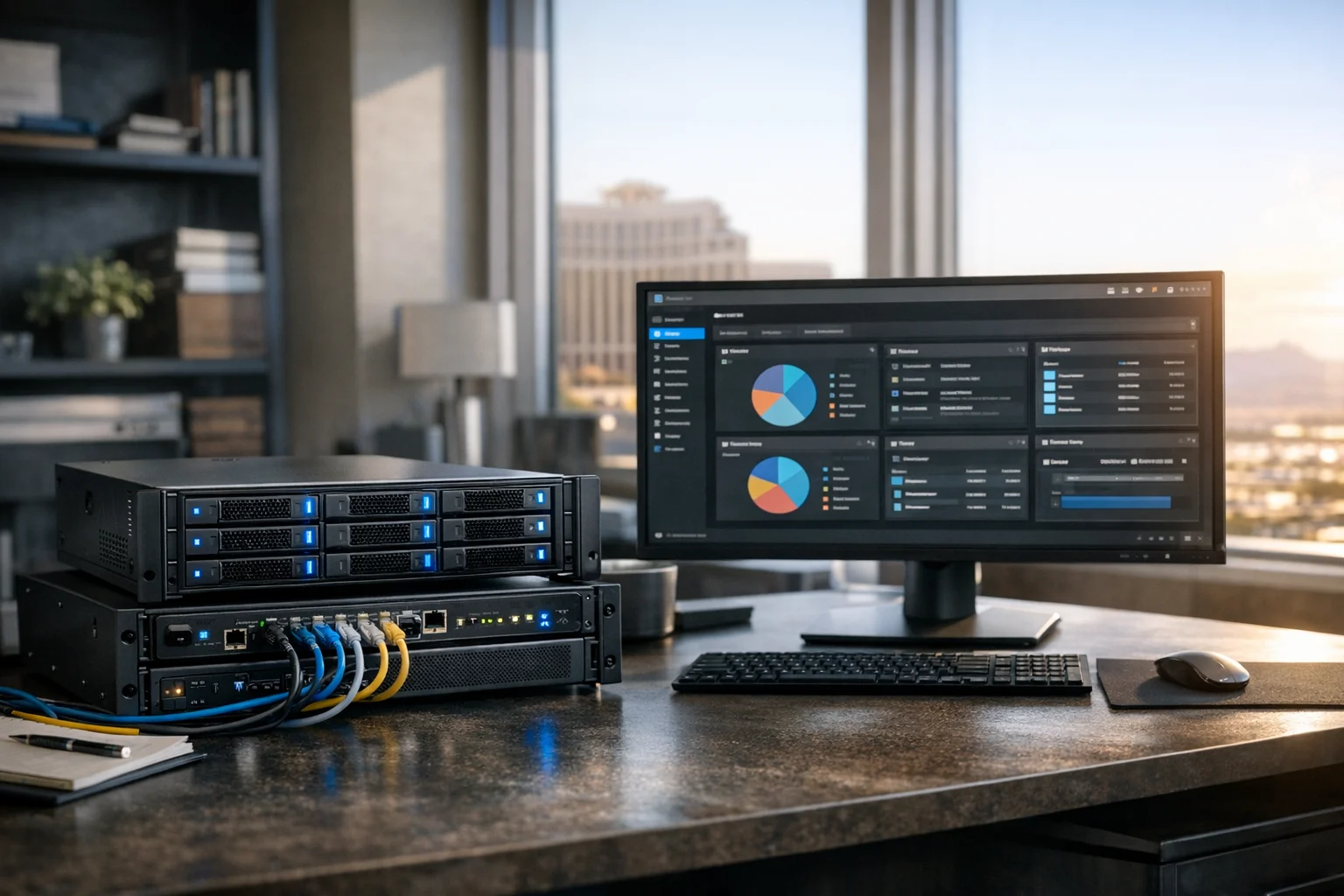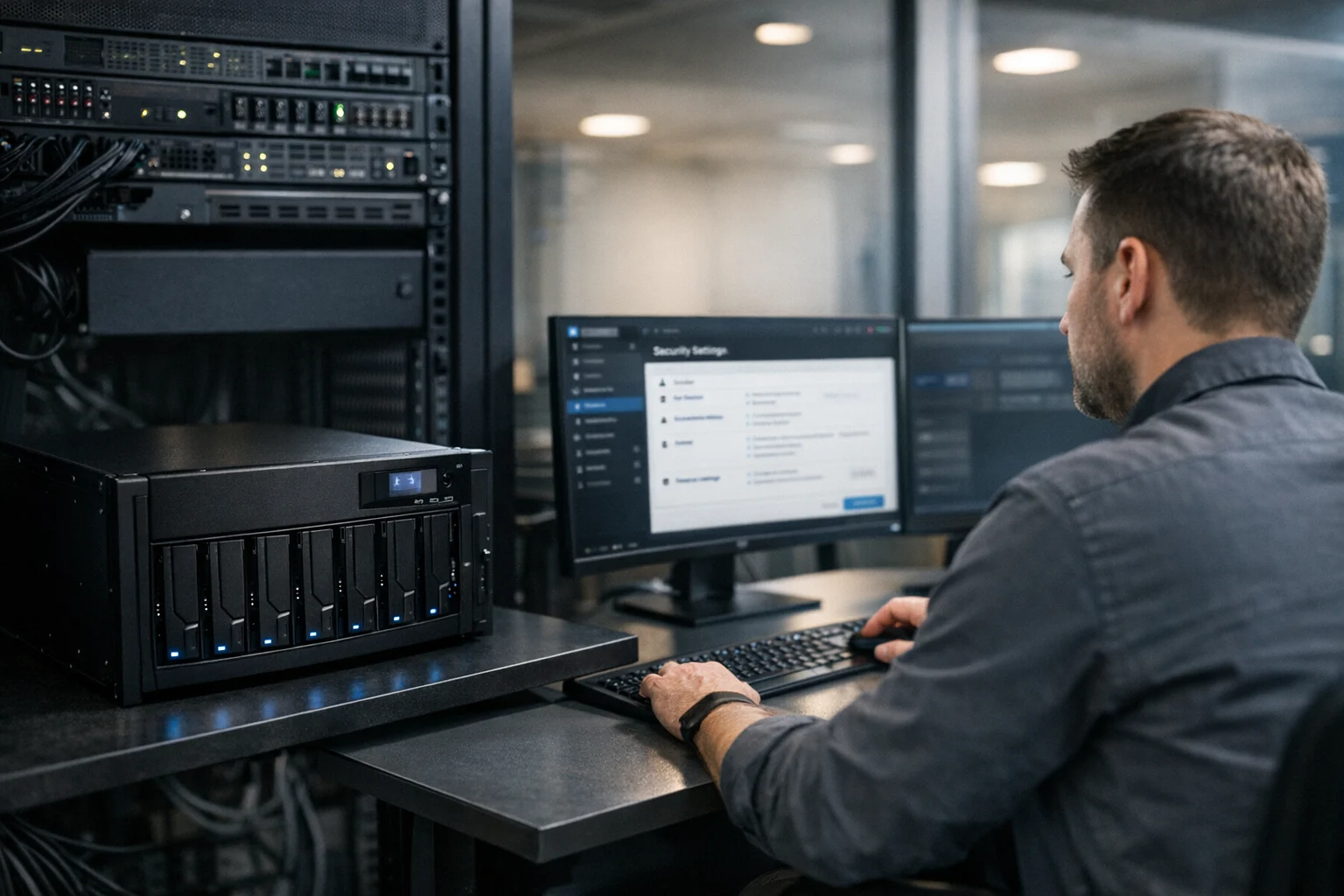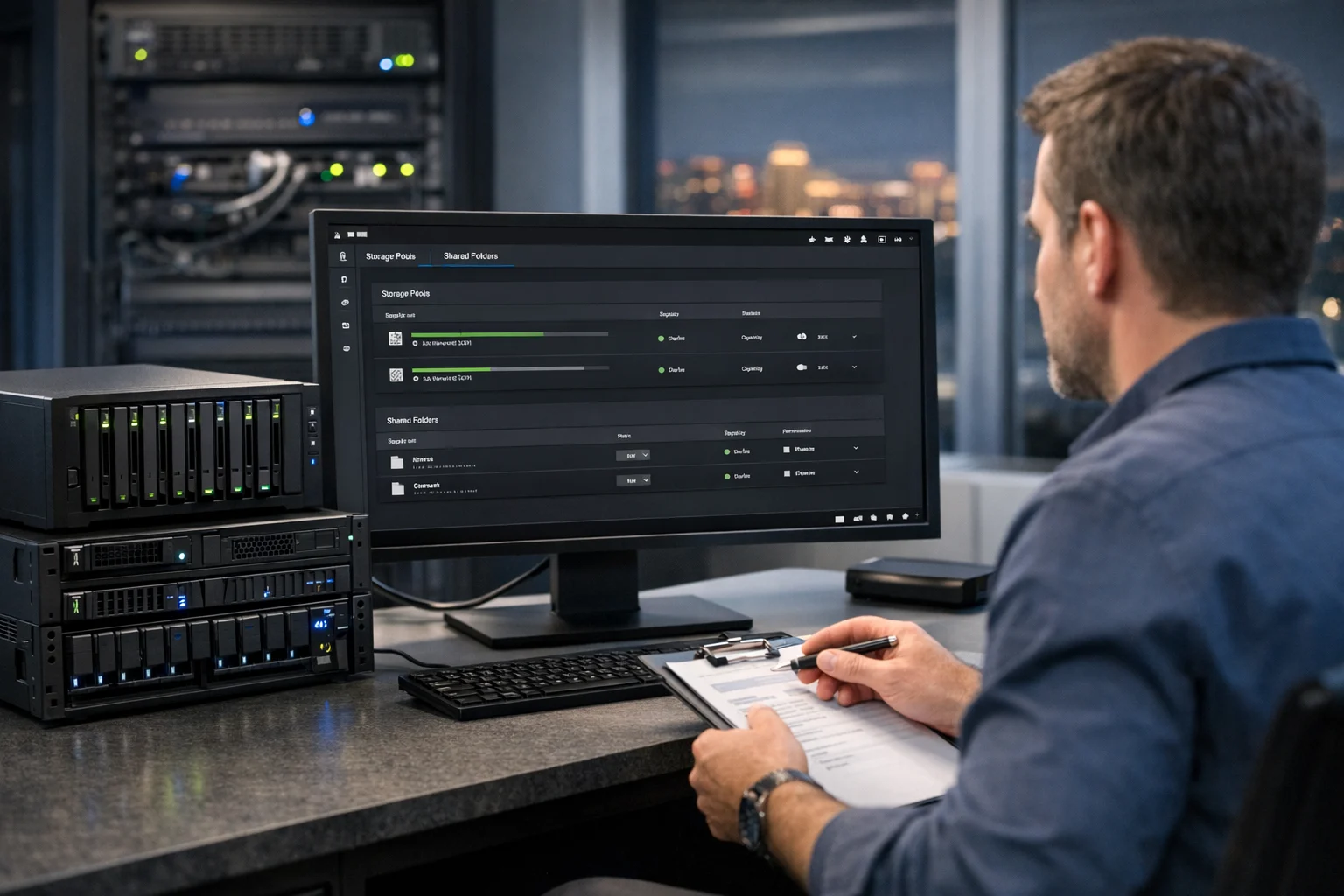
TrueNAS is one of the best options when you need reliable shared storage without paying enterprise software prices. It gives you strong control over file storage, user permissions, snapshots, and long term data protection. For business owners, marketing managers, and operations teams, that matters more than most people realize. Shared creative assets, website backups, client documents, ad exports, video files, and internal archives all need a place to live that is fast, organized, and dependable.
At SiteLiftMedia, we work with companies that care about performance across the board. That includes storage infrastructure, website maintenance, technical SEO, custom web design, cybersecurity services, and the systems that keep daily work moving. A business in Las Vegas might come to us for Las Vegas SEO or web design Las Vegas support, then realize their internal file storage is a mess. Broken shares, no backup strategy, weak permissions, and poor server hardening can quietly create expensive problems.
If you want to create storage pools and shares in TrueNAS the right way, the process is straightforward, but a few early decisions make a huge difference later. Most mistakes happen before the first share is even created.
What storage pools and shares actually do in TrueNAS
A storage pool is the foundation of your TrueNAS setup. It is the group of disks that TrueNAS combines into usable storage with ZFS. That pool is where your datasets, snapshots, and shared files will live.
A share is how users and devices access that storage over the network. In most business environments, that means SMB shares for Windows and Mac users. In Linux or virtualization environments, NFS is also common.
Think of it like this:
- The pool is the building
- The dataset is the room or department inside it
- The share is the door people use to get in
That middle layer, the dataset, matters. You can create a share directly from a pool path, but in practice, you should almost always create separate datasets first. Datasets make permissions cleaner, snapshots easier to manage, and future growth much less painful.
Before you create a pool, make these decisions first
This is the part many tutorials rush through. Don’t skip it.
1. Decide what the storage is for
A marketing team storing raw video, design exports, and campaign assets will have very different needs than an office storing PDFs and spreadsheets. If you also run virtual machines, local backups, or surveillance footage, that changes the design too.
Ask yourself:
- Will this store general office files?
- Will creative teams upload large media files?
- Will this host backups from workstations or servers?
- Will it connect to a Proxmox or VMware environment?
- Will remote users need VPN access to shares?
If your use case includes virtualized workloads, this guide on setting up Proxmox for a small business home lab pairs well with a TrueNAS file server plan.
2. Choose the right disk layout
TrueNAS uses ZFS, and ZFS cares a lot about how disks are grouped. You do not want to throw random drives together and hope for the best.
Common layouts include:
- Mirror, great for small setups and fast rebuilds
- RAIDZ1, usable for smaller environments but less appealing with large disks
- RAIDZ2, a strong business choice because it tolerates two drive failures
- RAIDZ3, better for larger arrays where uptime matters
For many business environments, especially where downtime is painful, RAIDZ2 is a safer middle ground than RAIDZ1. If the storage will hold active client files, campaign assets, or website archives, that extra protection is usually worth it.
One more thing: RAID is not a backup. A pool protects against drive failure. It does not protect against accidental deletion, ransomware, or bad user behavior.
3. Plan naming and structure
Use clean names from day one. Don’t name a pool something vague like “storage1” unless you want confusion later.
Good examples:
- pool_marketing
- pool_backups
- marketing_assets
- client_files
- website_backups
This matters when your business grows and the file server starts supporting multiple departments, agencies, or projects.
How to create a storage pool in TrueNAS
Once TrueNAS is installed and your disks are visible in the dashboard, you can build the pool.
Step 1: Open the Storage section
From the left sidebar in the TrueNAS web interface, go to Storage, then choose Create Pool.
TrueNAS will show your available disks. Double check that the drives you plan to use are empty or contain no needed data. Creating a pool will wipe them.
Step 2: Name the pool
Enter a descriptive name. Keep it simple and tied to business function, such as officepool or mediaarchive.
Step 3: Add drives to a vdev
Select the disks you want in the pool and move them into the data vdev area. Then choose the layout you want, such as mirror or RAIDZ2.
This step is where the real design happens. If you’re building for active shared business files, balance capacity with resilience. If you’re building for a small team in Las Vegas handling campaign assets, website export archives, and social media marketing content, mirrored SSDs or a RAIDZ2 array can both make sense depending on scale and budget.
Step 4: Confirm warnings and create the pool
TrueNAS will warn you that the selected drives will be erased. Confirm the action, then let the system build the pool.
Once it completes, your storage foundation is ready. Don’t jump straight into creating a share from the pool root. Create datasets first.
Create datasets before shares, always
This is one of the best habits you can build in TrueNAS.
Go to your new pool, click the options menu, and choose Add Dataset. Create separate datasets for each use case instead of dumping everything into one giant shared folder.
Examples:
- client_assets
- finance_docs
- website_backups
- video_exports
- team_shared
Datasets let you:
- Set different permissions for different teams
- Apply separate snapshot schedules
- Keep backup retention cleaner
- Scale storage in a more organized way
For example, your marketing department may need broad access to client_assets, but only leadership should touch finance_docs. Datasets make that easy.
If you want a more complete TrueNAS foundation before you deploy shared storage at the office or in a lab, our article on using TrueNAS for a reliable home lab storage server is a useful companion piece.
How to create an SMB share in TrueNAS
For most businesses, SMB is the share type you want. It works well for Windows offices, mixed Mac environments, and general file access.
Step 1: Go to Shares
In the TrueNAS sidebar, open Shares, then select Windows Shares (SMB).
Step 2: Add a new SMB share
Choose Add, then browse to the dataset path you want to share. Select the dataset you created earlier, not the root of the pool.
Give the share a clear name, such as:
- Marketing
- Client Files
- Backups
Keep names friendly for end users. The dataset can have a technical name, while the share name can be more readable.
Step 3: Review SMB options
In most cases, the default settings are a good starting point. If the share is for general office use, stick with standard SMB behavior and avoid unusual advanced settings unless you know you need them.
After saving, TrueNAS will usually prompt you to enable the SMB service if it is not already running. Turn it on.
Step 4: Test from a workstation
From a Windows machine, open File Explorer and enter the TrueNAS path, usually something like:
- \\truenas-hostname\Marketing
- \\ip-address\Marketing
If everything is configured properly, the share should appear. If not, permissions are usually the issue, not the share itself.
How to create an NFS share in TrueNAS
If your environment includes Linux systems, virtualization hosts, or containers, NFS may be a better fit for certain datasets.
To create one:
- Go to Shares
- Select Unix Shares (NFS)
- Click Add
- Choose the dataset path
- Set the allowed networks or hosts
- Save and enable the NFS service
NFS can work very well for hypervisor storage or Linux based workloads, but it should be locked down carefully. Don’t expose it broadly without network controls.
Set permissions the right way from the beginning
This is where a lot of business setups break down. The share exists, but users can’t write to it, or worse, everyone can access everything.
In TrueNAS, permissions are typically set at the dataset level. Open the dataset, then edit permissions or ACL settings depending on your version and configuration.
Best practice for business teams
- Create separate users for people who need direct access
- Create groups for departments like marketing, leadership, and operations
- Assign access to groups instead of one user at a time
- Keep sensitive datasets limited to only the people who truly need them
For example:
- marketing_group gets read and write access to client_assets
- leadership_group gets access to finance_docs
- backup_service_account gets limited access to website_backups
If you’re storing website files, design drafts, backups, or customer exports, permissions should be treated like part of your business website security plan, not an afterthought.
For a deeper look at hardening a TrueNAS deployment after the basic setup, read our guide on how to secure TrueNAS and protect shared business files.
Enable snapshots before users fill the share
Snapshots are one of the biggest reasons people choose ZFS. They let you recover from accidental deletion, unwanted changes, and some forms of user error without restoring from a full backup first.
In TrueNAS, go to Data Protection and create snapshot tasks for your important datasets.
A practical business snapshot plan might look like this:
- Hourly snapshots for active team shares during business hours
- Daily snapshots kept for two to four weeks
- Weekly snapshots kept longer for archive datasets
If your company runs redesign planning, spring marketing pushes, content expansion, or large asset handoffs, snapshots can save you when somebody overwrites the wrong folder at the wrong time.
Just remember, snapshots live on the same pool unless replicated elsewhere. They are not a complete backup strategy on their own.
Common mistakes that cause trouble later
Using mismatched drives
You can do it, but it usually leads to wasted space or inconsistent performance. Use matching drives whenever possible.
Sharing the pool root
This makes permission management harder and creates a mess as soon as you need separate access levels. Use datasets.
No naming convention
When your business expands, or another admin has to step in, unclear names slow everything down. Good system administration starts with clean organization.
Ignoring backups
Snapshots help, but they do not replace offsite or secondary backups. If a pool is lost, stolen, encrypted, or physically damaged, snapshots on that same system are gone too.
Leaving permissions wide open
Many small offices do this to avoid complaints from users. It works until someone deletes a folder they should never have been able to touch.
Skipping security hardening
Storage servers are often treated like simple appliances. They are still servers. That means updates, access controls, network segmentation, and server hardening matter. If your business already invests in penetration testing, cybersecurity services, or business website security, your file server should be part of that same conversation.
Where TrueNAS fits into a broader business setup
For many companies, TrueNAS is not just a file server. It becomes the central place for:
- Creative assets for ad campaigns
- Web development files and staging backups
- Internal process documents
- Archived analytics exports
- Backups from office workstations
- Media libraries for training or presentations
That is especially relevant for businesses pushing growth. A company focused on local SEO Las Vegas, backlink building services, or social media marketing often ends up with large sets of graphics, video content, exports, and reporting files. As those piles grow, local desktops and random USB drives stop being a serious strategy.
We see this a lot with businesses around Las Vegas that start with marketing problems but uncover infrastructure problems. A team hires an SEO company Las Vegas businesses trust, starts publishing more content, adds better creative production, maybe launches a custom web design project, then realizes internal file management is slowing everything down.
That is where stable storage, clean permissions, and smart infrastructure planning become part of the growth conversation, not just an IT side quest.
When it makes sense to bring in help
You can absolutely build a working TrueNAS setup yourself. Many business owners do. But if any of these apply, it may be smarter to get expert help:
- You are storing production business data with no fallback plan
- You need secure shared access for multiple departments
- You are mixing backups, office shares, and virtualization storage
- You are unsure about ACLs, snapshots, or network security
- You want TrueNAS to support a larger operations stack
That is where SiteLiftMedia can help. We are not just a digital agency focused on Las Vegas SEO, web design Las Vegas projects, and technical SEO performance. We also help businesses with system administration, website maintenance, cybersecurity services, server hardening, and the infrastructure cleanup that often needs to happen behind the scenes.
If your team is expanding storage, planning a redesign, organizing content for a spring marketing push, or cleaning up years of scattered files and backups, a properly built TrueNAS system can give you a reliable backbone. If you want help designing it, securing it, or connecting it to your broader digital operations, contact SiteLiftMedia and start with a setup that is organized, secure, and built for real business use.
Photo Gallery