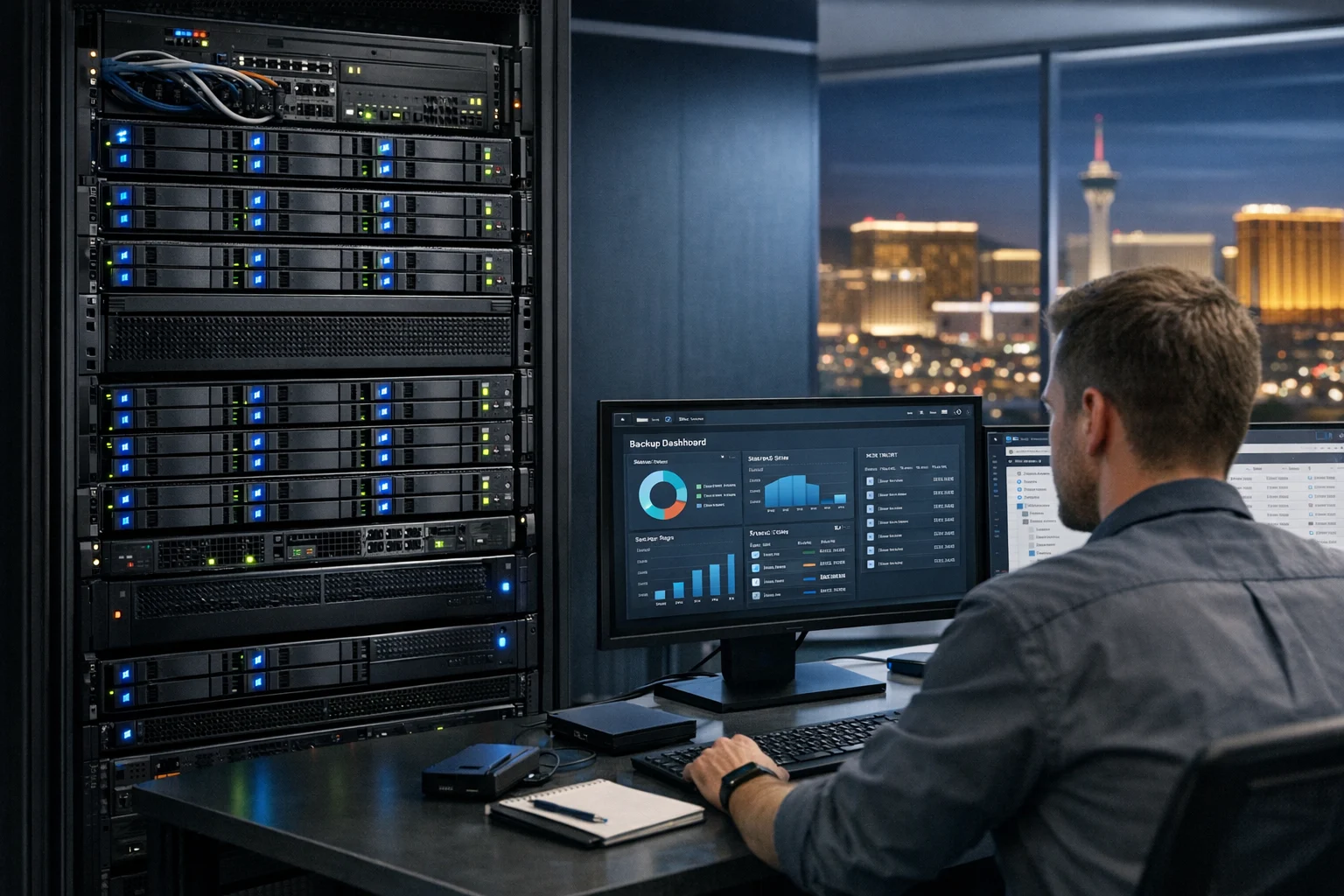
A reliable storage server changes how a home lab feels. Instead of juggling USB drives, scattered cloud folders, and old office PCs that may or may not boot, you get one place for backups, media, project files, virtual machine images, and shared business assets. TrueNAS is one of the best ways to build that foundation without turning your setup into a full-time hobby.
I’ve seen the difference firsthand. A home lab with solid storage stops feeling like a pile of experiments and starts behaving like real infrastructure. That matters if you’re a business owner keeping website backups, a marketing manager storing ad creative and video files, or a decision maker trying to protect company data without overspending. It also matters if you’re running a small Las Vegas office where heat, power fluctuations, and growth can expose weak storage decisions pretty quickly.
At SiteLiftMedia, we work with clients on more than websites and campaigns. We also help with system administration, server hardening, cybersecurity services, website maintenance, and technical SEO. Storage sits underneath all of it. If your data layer is unreliable, your content operation, business website security, and disaster recovery planning are shaky from the start.
This guide walks through how to use TrueNAS for a reliable home lab storage server in a way that’s practical, scalable, and useful for both home and business needs.
Why TrueNAS works so well in a home lab
TrueNAS is popular for a reason. It gives you enterprise-level storage features in a system that’s still approachable for a serious home lab. The biggest advantage is ZFS, the file system behind TrueNAS. ZFS is built for data integrity, which means it checks for corruption, supports snapshots, and gives you strong options for redundancy.
That makes TrueNAS a smart fit if you need dependable storage for things like:
- Website backups and staging files
- Creative assets for social media marketing and paid campaigns
- Client documents and shared team folders
- Virtual machine backups and ISO libraries
- Security camera footage or internal media archives
- Local copies of cloud data for business continuity
For business owners, the appeal is simple. You don’t need a huge enterprise SAN to get reliable shared storage. For marketing teams, it means large design files, video exports, and archived campaign material can live somewhere safer than a laptop desktop. For technical users, it gives you real control over pools, datasets, snapshots, replication, and network sharing.
If you’re just getting started and want a broader walkthrough, SiteLiftMedia also has a guide on how to set up TrueNAS for home and business storage that pairs well with the steps below.
Start with hardware that matches your reliability goals
TrueNAS can run on modest hardware, but reliable storage starts with realistic planning. A lot of problems people blame on software actually come from weak hardware choices.
Use a dedicated boot drive
Install TrueNAS on a separate SSD rather than on the same drives you’ll use for storage. Boot drives are cheap compared to the downtime you create by sharing roles across disks. A small SATA SSD or a mirrored pair of SSDs works well.
Choose storage drives intentionally
Don’t build your main pool from a random mix of old desktop drives. Try to use matched drives with similar size, speed, and age. NAS-rated drives are usually worth it for 24/7 use. If you’re protecting business files, consistency matters more than squeezing every last dollar out of leftover hardware.
Give TrueNAS enough RAM
TrueNAS benefits from memory, especially with ZFS. You don’t need to panic over extreme requirements, but don’t starve it either. For a small home lab, 16 GB is a comfortable baseline. If you’re storing more data, running apps, or serving multiple users, 32 GB gives you more breathing room.
Prefer reliable networking and power
A gigabit connection is fine for many setups. If you’re editing large video files, moving VM backups, or serving a small office, 2.5GbE or 10GbE can be a real upgrade. Pair the server with a UPS as well. In Las Vegas, summer power issues and high ambient temperatures can be harder on gear than people expect. Clean shutdowns and decent airflow usually do more for storage longevity than flashy specs.
Pick the right layout before you install anything
One of the biggest TrueNAS mistakes happens before the first login. People buy drives without deciding what kind of redundancy and capacity they actually need.
Think in terms of vdevs, not just total drive count. Your pool is built from one or more vdevs, and the structure of those vdevs determines performance, fault tolerance, and future expansion.
- Mirror vdevs are excellent for small, reliable builds. Two drives mirror each other. You lose half the raw capacity, but rebuilds are straightforward and performance is solid.
- RAIDZ1 gives one drive of parity. It can work for smaller pools, but many people now take a more cautious approach with larger drives.
- RAIDZ2 gives two drives of parity and is often the safer business choice for larger arrays.
For most home lab users who care more about reliability than maximum space, a mirror or RAIDZ2 setup is the sweet spot. If this server will hold important creative files, accounting exports, local SEO Las Vegas campaign assets, or client website archives, build for resilience first and capacity second.
Also remember that ZFS expansion is not the same as tossing extra disks into a Windows box. Plan ahead. It’s much easier to grow cleanly when the original design makes sense.
Install TrueNAS and lock down the basics early
Once your hardware is ready, install TrueNAS and treat the first hour of setup seriously. That hour shapes the reliability of everything that follows.
During initial configuration:
- Assign a static IP address so shares and services don’t move around on your network
- Set your hostname clearly, especially if you’ll add more servers later
- Update the system to the latest stable release
- Set strong admin credentials and enable two-factor authentication if available in your deployment
- Configure DNS, NTP, and email alerts so you actually hear about drive issues
- Check fan behavior and temperatures before loading the pool with data
I strongly recommend documenting every drive serial number and bay position. It sounds boring until a disk fails and you’re trying to identify the bad one quickly. That kind of simple discipline is what separates a reliable home lab from a fragile one.
If you’re a business owner delegating setup to a staff member, ask for written documentation from day one. The same way a good SEO company Las Vegas businesses trust will document redirects, analytics, and technical SEO changes, your storage platform should have clean operational notes too.
Build storage pools and datasets with real-world use in mind
After installation, your next job is building the pool and organizing data so it stays manageable. Don’t dump everything into one giant share called “storage.” It works for about a week, then turns into a mess.
Create datasets for separate functions. For example:
- Marketing
- Websites
- Creative
- Finance
- Backups
- VM-Images
- Archives
This structure gives you cleaner permissions, different snapshot policies, and simpler backup rules. Your website team may need access to the Websites dataset, while only management and accounting should touch Finance. A creative team might need large quotas and fast access for video work, while backups should be more locked down.
For a deeper walkthrough, SiteLiftMedia has a dedicated guide on how to create storage pools and shares in TrueNAS. It’s worth reading before you start making production folders.
Use the right share protocol
For most mixed office and home lab environments, SMB is the easiest choice. It works well with Windows and is straightforward for shared folders. NFS makes sense in Linux-heavy environments, especially if you’re mounting storage to hypervisors or application servers.
Set permissions carefully
Permissions are where many otherwise solid TrueNAS builds get sloppy. Create users and groups intentionally. Avoid making everyone an admin. If you need one share for the whole team and another for leadership only, define that clearly now instead of cleaning up permission sprawl later.
Use snapshots and backups like they actually matter
Redundancy is not backup. That’s the rule people keep learning the hard way.
A mirrored pool protects you from a drive failure. It does not protect you from accidental deletion, ransomware, bad sync jobs, or a fire. TrueNAS becomes a reliable storage server when you combine redundancy with snapshots and external backups.
Turn on periodic snapshots
Snapshots are one of the best features in ZFS. They’re fast, efficient, and incredibly useful when someone deletes a folder, overwrites a file, or pushes a bad batch of changes. I like shorter retention for active datasets and longer retention for archives. Something like hourly snapshots for active project folders, daily snapshots for general shares, and weekly or monthly retention for archives can work well.
Back up to another target
The best setup still follows the 3-2-1 rule: three copies of your data, on two types of media, with one copy offsite. That could mean replicating to a second TrueNAS box, copying critical datasets to external storage, or syncing specific business folders to cloud storage.
If backup strategy is your weak spot, read our guide on how to back up important data with TrueNAS. It helps close the gap between “I have a server” and “I can recover from a bad day.”
This is especially important for teams managing campaign assets, product photography, custom web design files, and content expansion projects. A missed backup can wipe out weeks of work, and when spring marketing pushes hit, nobody wants to recreate approved assets from scratch.
Monitor drive health before a failure becomes an emergency
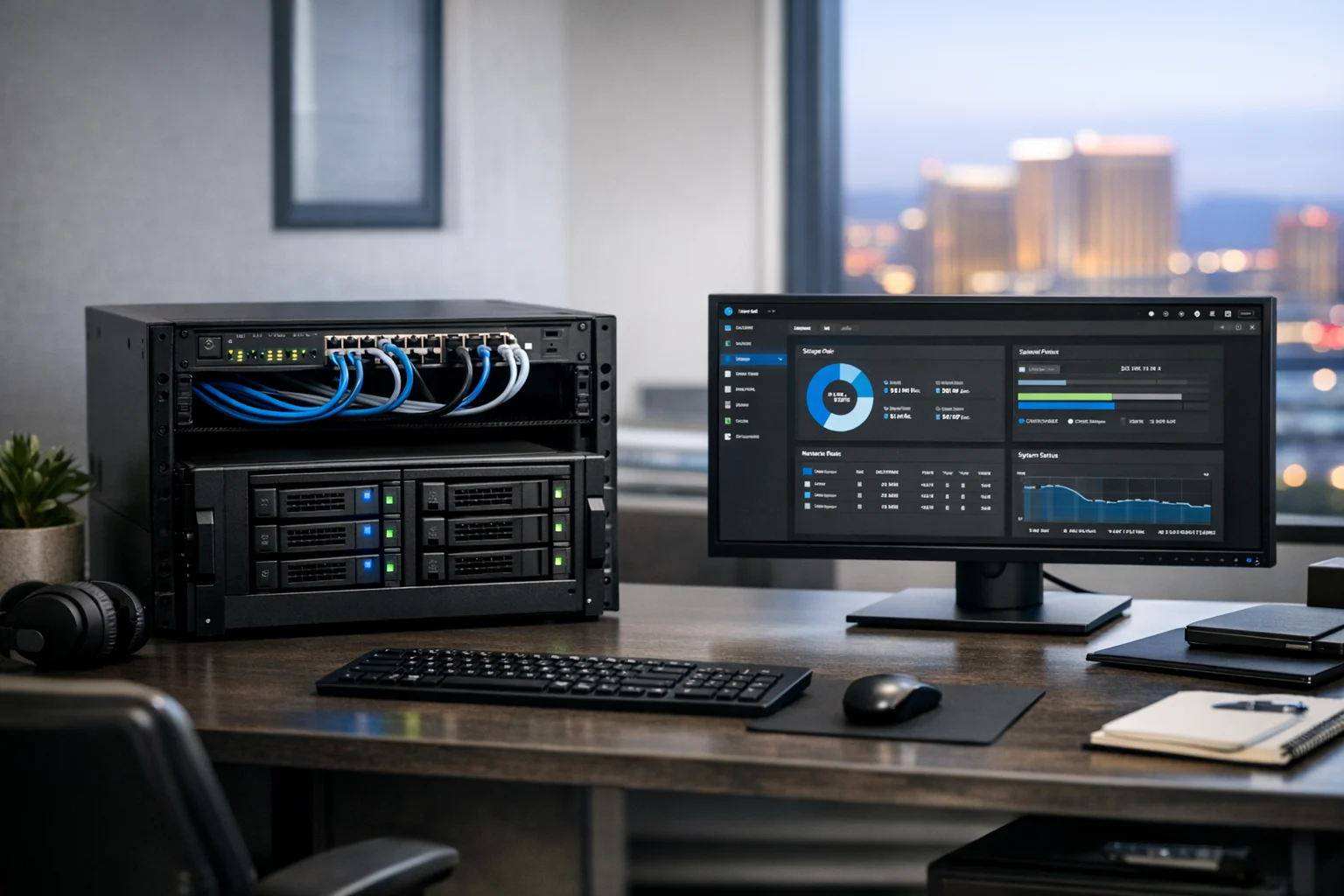
TrueNAS gives you the tools to stay ahead of trouble, but only if you use them. Enable SMART monitoring, schedule regular scrubs, and set up email alerts that go to someone who will actually check them.
A healthy monitoring routine should include:
- SMART tests on every storage drive
- Regular ZFS scrubs to verify data integrity
- Capacity checks so the pool doesn’t creep toward dangerous fullness
- Temperature monitoring, especially in enclosed racks or hot garage labs
- Reviewing alert logs after updates or hardware changes
Don’t let your pool fill up completely. ZFS performs better with free space available, and recovery work gets uglier when you’re operating at the edge. If your business is growing, budget for expansion before you hit a wall. That applies just as much to storage as it does to redesign planning, backlink building services, or new landing page development.
Keep the server secure and off the open internet
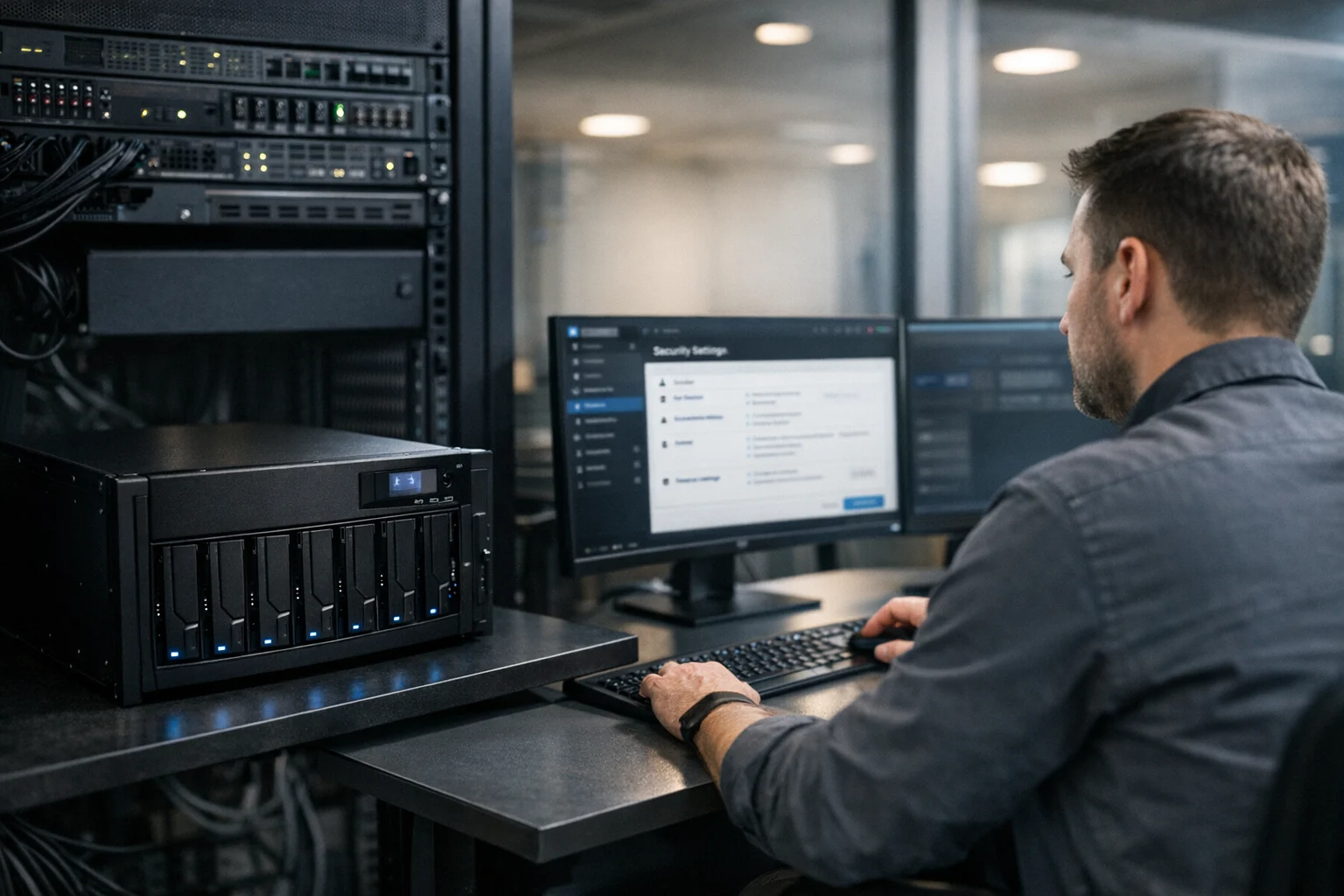
Reliability without security is a short-lived win. A home lab storage server should not be exposed directly to the public internet just because remote access sounds convenient.
Here’s the safer approach:
- Keep the TrueNAS management interface on your local network or behind a VPN
- Use unique accounts rather than shared admin credentials
- Disable services you don’t need
- Apply updates on a planned schedule
- Segment critical systems if possible
- Review permissions and old accounts regularly
If your home lab includes virtualization, many people pair TrueNAS with Proxmox. That’s a powerful combination, but it raises the stakes for security. If you’re running both, take time to secure a Proxmox server before regular use so your storage and virtualization stack aren’t built on loose defaults.
This is where SiteLiftMedia often gets pulled in for more than pure marketing work. Clients come to us for web design Las Vegas projects or local SEO Las Vegas campaigns, then realize they also need better website maintenance, system administration, server hardening, penetration testing, and cybersecurity services behind the scenes. It’s all connected. If you’re hosting staging sites, storing backups, or managing internal business data, your infrastructure choices affect your risk profile.
Performance tuning that actually helps
You can spend a lot of time tuning TrueNAS without seeing much benefit. The best performance gains usually come from a few straightforward decisions.
Use SSDs where they make sense
If your workloads involve lots of random access, metadata-heavy activity, or app hosting, SSDs help. If you’re mainly storing large files and backups, spinning disks may be perfectly fine for the main pool. Don’t buy cache devices just because forum posts make them sound essential. L2ARC and SLOG devices are useful in specific scenarios, not as default upgrades.
Upgrade networking when the workload justifies it
Moving from 1GbE to 2.5GbE or 10GbE can make a huge difference if multiple users are accessing the server or if you’re editing directly from network shares. For many offices, network speed becomes the bottleneck long before disk performance does.
Separate heavy workloads
If you’re running apps, containers, and storage from the same box, keep an eye on contention. A storage server stays reliable when its primary role stays clear. You can experiment in a home lab, but production reliability improves when you avoid overloading the system with unrelated tasks.
How business owners and marketing teams can actually use a TrueNAS home lab
For decision makers, the value of TrueNAS gets clearer when you look at daily operations instead of server specs. A reliable storage server can support:
- Shared repositories for ad creative, photography, and video
- Website backup storage for staging and production snapshots
- Secure archives for old campaign assets and client deliverables
- Internal file shares for distributed teams
- VM storage for testing websites, landing pages, and software tools
- Local backup targets for staff machines and office systems
That matters whether you’re in Nevada or managing a distributed team nationwide. For Las Vegas businesses in particular, I’ve noticed a recurring pattern. Companies invest in lead generation, content, and branding, but the operational side lags behind. They want better Las Vegas SEO performance, stronger custom web design, and more effective social media marketing, yet their internal storage is still a patchwork of external drives and unmanaged cloud folders. That setup creates friction, data loss risk, and slower execution.
A TrueNAS server won’t replace good cloud tools, but it does give you a stable center for the data your business depends on.
Mistakes that make TrueNAS less reliable
A few issues come up again and again in home lab deployments:
- Using old mystery drives for important data
- Skipping backups because the pool has redundancy
- Overcomplicating permissions without a clear structure
- Running the box too hot in a closet, garage, or unventilated rack
- Ignoring alerts until a scrub fails or a drive drops out
- Exposing management interfaces directly to the internet
- Buying hardware first and thinking about the pool layout later
There’s nothing wrong with learning in a home lab. That’s part of the point. But if this server will hold anything your business would miss, treat those mistakes as expensive, not harmless.
When it makes sense to bring in outside help
Some teams enjoy building their own infrastructure. Others would rather focus on revenue, marketing, and operations. Both approaches are reasonable.
If you need a TrueNAS setup that ties into broader business goals, outside help can save a lot of time. That might include planning the hardware, structuring shares, tightening security, integrating backups, or making sure the storage environment supports website deployments and file workflows cleanly.
At SiteLiftMedia, we help businesses connect the technical side with growth goals. That can mean a reliable storage and backup plan, but it can also mean technical SEO cleanup, web design Las Vegas support, business website security reviews, infrastructure cleanup, content expansion planning, and ongoing website maintenance. The right storage server is part of a bigger system, not an isolated gadget.
If you want a TrueNAS environment that’s dependable enough for real work, and you’d like help aligning it with your website, security, and operations stack, contact SiteLiftMedia. It’s a lot easier to build it right now than to sort it out after the next drive warning turns into a business interruption.
Photo Gallery