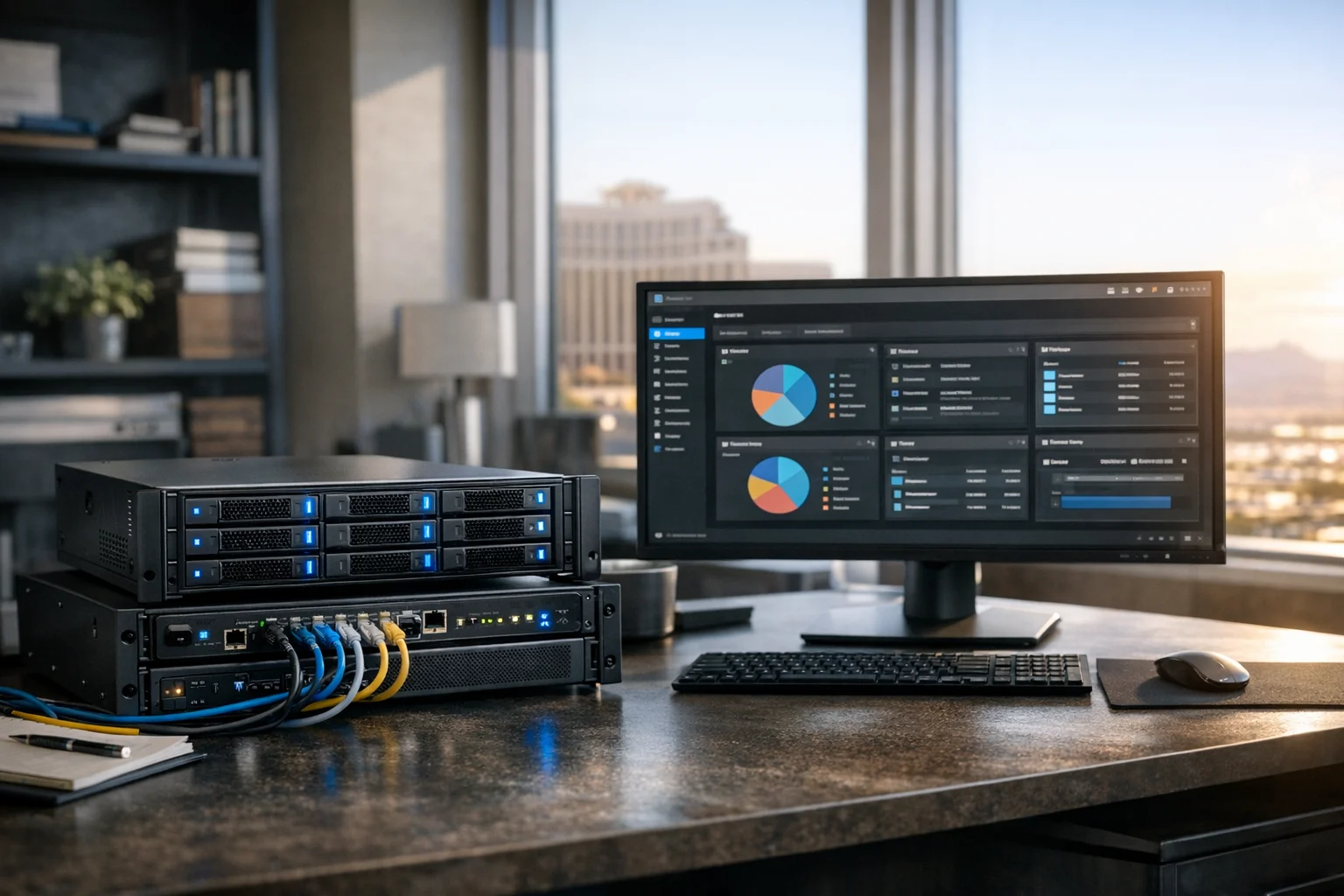
Setting up TrueNAS can sound like something for the IT department, until shared files start getting scattered across desktops, USB drives, cloud folders, and old laptops. At home, that usually turns into a backup mess. At work, it becomes a real operational problem. Teams waste time hunting down the latest version of a file, media assets get duplicated, and important backups end up living on the same machine they were supposed to protect.
TrueNAS solves that by giving you centralized, reliable network storage that can support a home office, a creative studio, a small business, or a growing team with multiple workstations. Set it up properly, and it becomes one of those systems people barely think about because it just works. Rush the setup, and you end up dealing with permission issues, weak performance, and unnecessary data risk.
At SiteLiftMedia, we look at infrastructure the same way we look at web design, SEO, app development, and cybersecurity. The foundation matters. A company can invest in Las Vegas SEO, local SEO Las Vegas campaigns, custom web design, website maintenance, and social media marketing, but if the internal file system is unreliable, daily work still slows down. This guide walks through how to set up TrueNAS for network storage at home or work in a way that is practical, stable, and secure.
Why TrueNAS makes sense for home and business use
TrueNAS is a network attached storage platform built for serious file storage, sharing, and data protection. For most new deployments today, TrueNAS SCALE is the version people choose because it is actively developed, flexible, and well suited for both home labs and business environments.
What makes it appealing is not just that it stores files on the network. Plenty of devices can do that. The real value is in the way TrueNAS handles storage pools, permissions, snapshots, replication, and monitoring. It gives you more control than consumer-grade NAS units, and it scales better as your needs grow.
That matters if you run a business with design files, accounting exports, local backups, client deliverables, video assets, or website archives. It also matters if you work from home and want one place for documents, media, camera footage, and PC backups. We see this often with companies in Las Vegas pushing spring marketing campaigns, redesign planning, and content expansion. Storage needs climb quickly when teams start producing more creative work.
TrueNAS is a strong fit if you need:
- Shared file access for multiple users or devices
- More reliable backups than external drives alone
- Snapshots to recover deleted or overwritten files
- A central place for media, archives, and project folders
- Better control over permissions and security
- A platform that can grow without replacing everything next quarter
Choose the right hardware before you install anything
The most common mistake is starting with random spare parts and hoping the software will make up for it. TrueNAS is powerful, but it cannot turn weak or mismatched hardware into a reliable storage server. The setups that hold up over time are the ones planned around the actual job they need to do.
Start with your real workload
Ask a few practical questions first:
- How many users will access the server at the same time?
- Are you storing office documents, raw video, photo libraries, or backups?
- Do you need this for home use, a small office, or both?
- Will it only serve files, or will it also run apps or virtualized services later?
- How much usable storage do you need now, and what will that look like in 12 to 24 months?
For a home office or small team, a modest mini tower or rack server with quality drives is usually enough. For a business handling heavier media work, camera footage, or several editors accessing files at once, you will want more CPU, more RAM, faster networking, and better redundancy.
Recommended baseline hardware
A solid starting point for most home and small business TrueNAS builds includes:
- A modern Intel or AMD CPU
- At least 16 GB of RAM, with more if you have a larger pool or future app plans
- A dedicated SSD for the TrueNAS operating system
- Two or more matching storage drives, preferably NAS or enterprise grade
- Gigabit networking at minimum, with 2.5 GbE or 10 GbE if you move large files often
- A UPS so a power event does not corrupt data during a write operation
If this is for work, do not cheap out on the drives. Use proper NAS-rated or enterprise-rated drives from a reputable line. We also recommend ECC memory when the platform supports it, especially for business deployments where uptime and data integrity matter.
For businesses in Las Vegas, there is another practical issue people overlook: heat. Network gear and storage boxes that live in a hot office closet or garage fail faster. Keep the system in a cool, ventilated space. That one choice can do more for drive life and stability than most people expect.
Install TrueNAS and get it on the network
Once your hardware is ready, installation is straightforward.
- Download the latest TrueNAS SCALE installer from the official source
- Create a bootable USB installer
- Connect keyboard and monitor to the target machine
- Boot from the installer and choose the dedicated OS drive
- Set an administrator password you will actually store securely
- Reboot after installation completes
After the reboot, the console screen will display the server's IP address. From another computer on the same network, open a browser and go to that IP. That brings you into the TrueNAS web interface, which is where nearly all ongoing setup happens.
Before you create storage, take care of a few basics right away:
- Assign a static IP address so the server does not move around on your network
- Set the correct time zone
- Update TrueNAS to the latest stable release
- Configure email or alert notifications so you know when a disk or service has a problem
That static IP matters more than people think. If staff map a shared drive to an address that keeps changing, support headaches start immediately. In an office with shared access to project folders, backups, and archived web assets, consistency saves time.
Create your storage pool the right way
This is where TrueNAS starts to differ from simpler NAS devices. You do not just throw disks into a box and make one giant folder. You create a storage pool, then build datasets and shares on top of it in a way that matches how the files will be used.
When you create the pool, TrueNAS will ask how you want to arrange the drives. The right choice depends on whether you care more about capacity, redundancy, or performance. For most home and business setups, some form of redundancy is the right call. Losing one drive should not take the whole pool offline.
A few common approaches:
- Mirror: Great for two drives. One drive can fail without losing the pool.
- RAIDZ1: Better capacity efficiency, but less fault tolerance than larger options.
- RAIDZ2: A stronger business choice when you have more drives and want better protection.
If you are new to this part, do not guess. We have a deeper walkthrough on creating storage pools and shares in TrueNAS that helps you avoid layout mistakes that are frustrating to undo later.
Once the pool exists, create separate datasets instead of dumping everything into one shared location. That gives you cleaner permissions, snapshots, and performance settings. A business setup might include datasets like:
- Marketing
- Accounting
- Website Backups
- Creative Assets
- Client Deliverables
- Archive
This structure is especially useful for agencies, in-house marketing teams, and firms working with large media files. A company investing in web design Las Vegas projects, technical SEO work, backlink building services, or social media marketing can quickly end up with huge collections of videos, source files, exports, and reports. Breaking that into datasets makes long-term management much easier.
Set up users, permissions, and network shares
Once storage is created, the next job is making it accessible without making it careless.
Most home and office environments use SMB shares so Windows and Mac users can connect easily. Linux systems may also use NFS, but SMB is the default choice for general business use.
Create user accounts first
Do not let everyone log in with one generic account. Create proper users and groups. Even in a small office, this matters. It gives you cleaner access control and makes it much easier to remove or change access later.
A simple setup might include groups like:
- Management
- Marketing
- Design
- Accounting
- Read Only
Assign dataset permissions based on those groups. That way your design team can update the creative folder, while accounting can access invoices and archives without seeing internal campaign assets.
Create the SMB share
In TrueNAS, go to the sharing section, create a new SMB share, point it at the dataset, and enable the SMB service. From there, connect to it from a workstation using the server name or static IP.
Before you call it done, test from at least two different user accounts. Make sure read and write access work exactly as intended. A quick test now saves you from the classic problem where one manager can access everything and everyone else gets access denied errors five minutes before a deadline.
If this is a home setup, the same rule applies. You may want one shared family folder, one media folder, and one private backup dataset that normal users cannot casually browse.
Set snapshots, backups, and alerts before users rely on it
One of the best TrueNAS features is snapshots. A snapshot is a point-in-time record of a dataset. If someone deletes a folder, overwrites a file, or saves the wrong version, snapshots can save the day.
For business use, schedule snapshots automatically. A common pattern is hourly snapshots for recent recovery, daily snapshots for short-term history, and weekly or monthly retention for longer protection. The right schedule depends on how often files change and how much storage you can allocate for retention.
Just remember this: snapshots are not backups by themselves. If the entire system is destroyed, encrypted, or physically stolen, local snapshots on that box will not help. You still need a second copy somewhere else.
At minimum, build a backup plan that includes:
- Local snapshots for quick recovery
- Replication to another NAS or external target
- Cloud or offsite backup for disaster recovery
- Regular test restores so you know the data is actually recoverable
If you want a more detailed process, our guide on backing up important data with TrueNAS is a helpful next read.
Set up email alerts too. Disk warnings, pool issues, and failed jobs should never be discovered by accident. A NAS that quietly logs errors for months is exactly how small issues turn into expensive recoveries.
Secure TrueNAS like it belongs to a real business
Even if your TrueNAS box lives in a back office or home lab, it still deserves proper security. We have seen too many teams treat internal storage like it is invisible, then get surprised when flat networks, weak passwords, or overly broad sharing create risk.
Start with the basics:
- Use a strong admin password and unique user credentials
- Limit admin access to only the people who need it
- Keep TrueNAS updated
- Disable unused services
- Restrict exposure to the public internet
- Segment business-critical systems where possible
- Review permissions regularly
If this is for a company, pair the storage setup with broader cybersecurity services and good internal policy. That includes server hardening, access reviews, business website security, and, for more mature environments, periodic penetration testing. Storage is only one part of the system. If workstation credentials are weak or the network is poorly segmented, the NAS can still be exposed.
We cover this in more detail in our article on securing TrueNAS and protecting shared business files.
This is also where good system administration matters. A lot of businesses searching for an SEO company Las Vegas or a web design Las Vegas team do not realize how much operational stability happens behind the scenes. If your agency handles websites, hosting, file assets, reporting, and campaign archives, the storage side should be just as disciplined as the marketing side.
Common setup mistakes that cause problems later
Most TrueNAS issues are not caused by TrueNAS itself. They come from rushed choices at the beginning. Here are the ones we see most often:
- Using old mismatched drives: Pool behavior becomes unpredictable and performance suffers.
- No redundancy plan: One failed disk should not become a total outage.
- Putting everything in one dataset: Permissions and snapshot policies become messy fast.
- Skipping backups: Redundancy is not the same thing as backup.
- Running it on unreliable power: A UPS is cheap compared to recovery time.
- Exposing the NAS directly to the internet: That is rarely necessary and often a bad idea.
- Ignoring performance needs: If your team edits large media files over the network, 1 GbE may become the bottleneck.
There is also a softer business mistake: no ownership. Someone needs to be responsible for checking alerts, validating backups, updating the system, and reviewing access. In a lot of organizations, that responsibility gets assumed instead of assigned.
When a DIY TrueNAS setup should become a managed project
If you are setting up a small home NAS for personal files, DIY is often fine. If you are building storage for a team, client work, archived website files, internal reports, or production media, it is worth treating the project like real infrastructure.
That is especially true if your business is already dealing with website maintenance, custom web design updates, growing local search campaigns, and larger content libraries. Reliable storage supports all of it. Design files, SEO exports, paid media reports, CRM backups, and video assets all need structure and protection.
For companies in Las Vegas, Henderson, Summerlin, and throughout Nevada, we often see TrueNAS become part of a broader cleanup effort that includes infrastructure refreshes, better backup planning, server hardening, and business continuity improvements. Nationwide, the pattern is the same. Teams grow, assets multiply, and the old folder sprawl stops working.
If you want help planning or deploying a TrueNAS environment that actually fits your workflow, SiteLiftMedia can help. We support businesses with practical system administration, cybersecurity services, infrastructure cleanup, and the digital operations behind marketing growth. If your office needs storage that is stable, secure, and ready for daily use, reach out to SiteLiftMedia before you buy another random external drive.
Photo Gallery