Plex is one of those tools that feels simple until it suddenly isn’t. On paper, local streaming should be easy. Your media server is in the same building, the client device is a few rooms away, and there’s no public internet bottleneck to blame. Yet people still run into buffering, random quality drops, delayed playback, and streams that look like they’re barely keeping up.
If you’re a business owner, marketing manager, or operations lead, that kind of friction matters more than it might seem. We’ve seen Plex used for showroom displays, internal training libraries, client presentation rooms, digital signage, creative review workflows, and executive home office setups. When streaming performance is poor, it usually points to a deeper issue with local infrastructure, storage, system administration, or device compatibility.
At SiteLiftMedia, we work with businesses across the country, with a strong footprint in Las Vegas, Nevada, where many companies are juggling office networks, media workflows, website maintenance, cybersecurity services, and growth projects at the same time. Whether you found us while researching Plex performance or while looking for a broader technical partner for Las Vegas SEO, web design Las Vegas, local SEO Las Vegas, technical SEO, or server hardening, the same principle still applies: clean systems perform better.
Here’s how to improve Plex streaming performance on your local network without wasting time guessing.
Understand what Plex is actually doing during playback
The first thing to know is that Plex can play media in three different ways: direct play, direct stream, and transcode. If you don’t identify which one is happening, it’s easy to spend hours tweaking the wrong part of your setup.
- Direct play means the client device can play the file exactly as it exists.
- Direct stream means Plex repackages the file container but doesn’t fully convert the video.
- Transcoding means the server has to convert video, audio, subtitles, or all three in real time.
Direct play is almost always the fastest and most stable option on a local network. If your server keeps transcoding large 4K files to satisfy a weak client device, you’ll see buffering even when your network speed looks fine. In many offices and homes, the problem isn’t bandwidth. It’s the server getting hammered by unnecessary conversion work.
Open the Plex dashboard during playback and check the stream status. If a file is transcoding when you expected smooth local playback, that’s your starting point.
Prioritize direct play before you buy new hardware
A lot of people assume they need a faster server. Sometimes they do. More often, they need files and devices that work well together.
Match media formats to your playback devices
If your TVs, streaming boxes, conference room displays, or tablets don’t support the codec or container you’re serving, Plex has to step in and convert. That’s usually where performance problems begin.
In real-world setups, H.264 video with AAC or AC3 audio tends to be the safest choice for broad compatibility. H.265 or HEVC can save storage space and look great, but not every client handles it equally well, especially older smart TVs and low-cost streaming sticks. The same goes for high bitrate 4K remux files. They may play beautifully on one device and struggle on another.
If you have a mixed environment, standardizing your media library can make a big difference. Many businesses keep one optimized version for internal viewing and one archival master somewhere else. That approach reduces server load and makes playback more predictable.
Watch subtitle behavior closely
Subtitles are one of the most overlooked causes of Plex transcoding. Image-based subtitle formats like PGS often force a transcode on devices that can’t render them natively. Text-based subtitles such as SRT are usually much lighter.
If a stream buffers only when subtitles are enabled, that’s a strong clue. Switching subtitle formats or disabling burn-in behavior can solve the issue quickly.
Check audio compatibility too
It’s not always the video. Unsupported audio codecs can trigger transcoding on their own. If the client doesn’t support the source audio, Plex may transcode the stream even if the video is otherwise fine. That’s why two files with similar resolution can behave very differently.
Before spending money, test a few known-compatible files and compare. If those play cleanly, your server probably isn’t the main problem.
Fix the network path, not just the internet speed
Plex on a local network lives or dies by the path between server and client. People often run speed tests to the public internet, see good numbers, and assume the network is healthy. That doesn’t tell you much about internal throughput, wireless interference, bad switch ports, or weak access point placement.
Use wired connections where they matter most
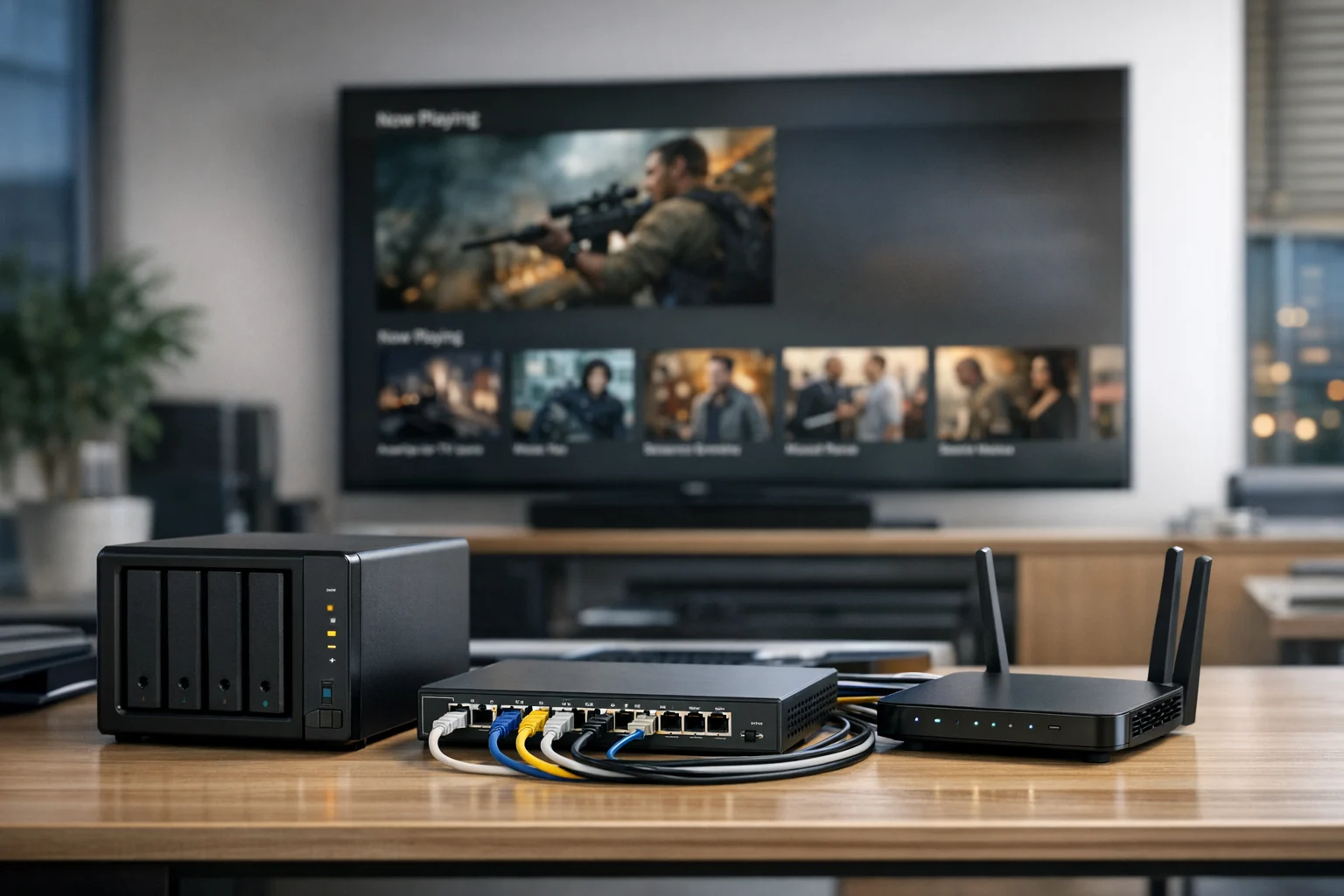
If your Plex server is on Wi-Fi, fix that first. A server should be wired whenever possible. The same goes for primary playback devices in high-demand rooms, like a boardroom TV, showroom display, or main living room setup.
Gigabit Ethernet is still a solid baseline for most Plex environments. If multiple users are streaming large 4K files from a central NAS, 2.5GbE or 10GbE may be worth considering. The server doesn’t need enterprise complexity, but it does need stable, low-latency internal connectivity.
We’ve seen Las Vegas offices with great internet service packages and weak internal cabling practices. It’s common in spaces that have grown quickly during website refresh projects, Q1 growth strategies, or office reconfigurations. A few unmanaged switches, a wall jack with a bad termination, and a consumer-grade Wi-Fi hop can wreck local media performance.
Audit your switches and access points
Look at the whole route:
- Is the Plex server connected at gigabit or higher?
- Are any ports negotiating down to 100 Mbps?
- Are clients using crowded 2.4 GHz wireless instead of 5 GHz or 6 GHz?
- Is an access point too far from the playback area?
- Are backup jobs, cloud sync tools, or large file transfers saturating the same switch uplink?
Business environments make this more complicated because Plex may be sharing the LAN with VoIP phones, security cameras, guest Wi-Fi, cloud backups, and marketing media transfers. That’s where basic network segmentation and better system administration can help.
Improve Wi-Fi instead of guessing at it
If you have to stream over Wi-Fi, optimize it on purpose. Put high-demand clients on 5 GHz or 6 GHz, avoid weak signal areas, reduce interference, and make sure your access points are placed for coverage rather than convenience.
Mesh systems can work, but wireless backhaul adds another variable. For large homes, multiroom offices, and modern Las Vegas commercial spaces with dense walls or reflective materials, a properly planned wired backhaul to each access point is much more reliable.
Also check for roaming issues. A client device bouncing between access points during playback can create odd stutters that feel like server trouble.
Make sure the Plex server has enough real horsepower
Once you’ve ruled out easy compatibility problems and obvious network bottlenecks, it’s time to inspect the server itself.
CPU and GPU matter more than raw RAM for transcoding
If your library is mostly direct play, you don’t need an oversized server. But if users regularly stream mixed formats, remote sessions, or 4K content with subtitle conversion, the server needs serious transcoding capability.
Intel Quick Sync can be excellent for Plex hardware transcoding when paired with a compatible CPU and the right Plex settings. Nvidia GPUs are also common in heavier environments. The key is making sure hardware acceleration is actually enabled and supported by your OS, drivers, and Plex installation.
We often see small servers with decent CPUs underperform because hardware transcoding was never configured correctly. A modest system with a properly working iGPU can beat a stronger box that’s stuck doing everything in software.
Storage speed affects responsiveness more than people expect
Media files themselves are usually sequential reads, which many drives can handle. The slowdowns often show up in metadata access, thumbnail loading, background analysis, or databases sitting on sluggish disks.
If your Plex database and metadata live on a slow spinning drive that’s also serving the media library, the whole experience can feel sluggish even before a stream starts. Moving the Plex application data and metadata to SSD storage often improves navigation, poster loading, and stream startup time.
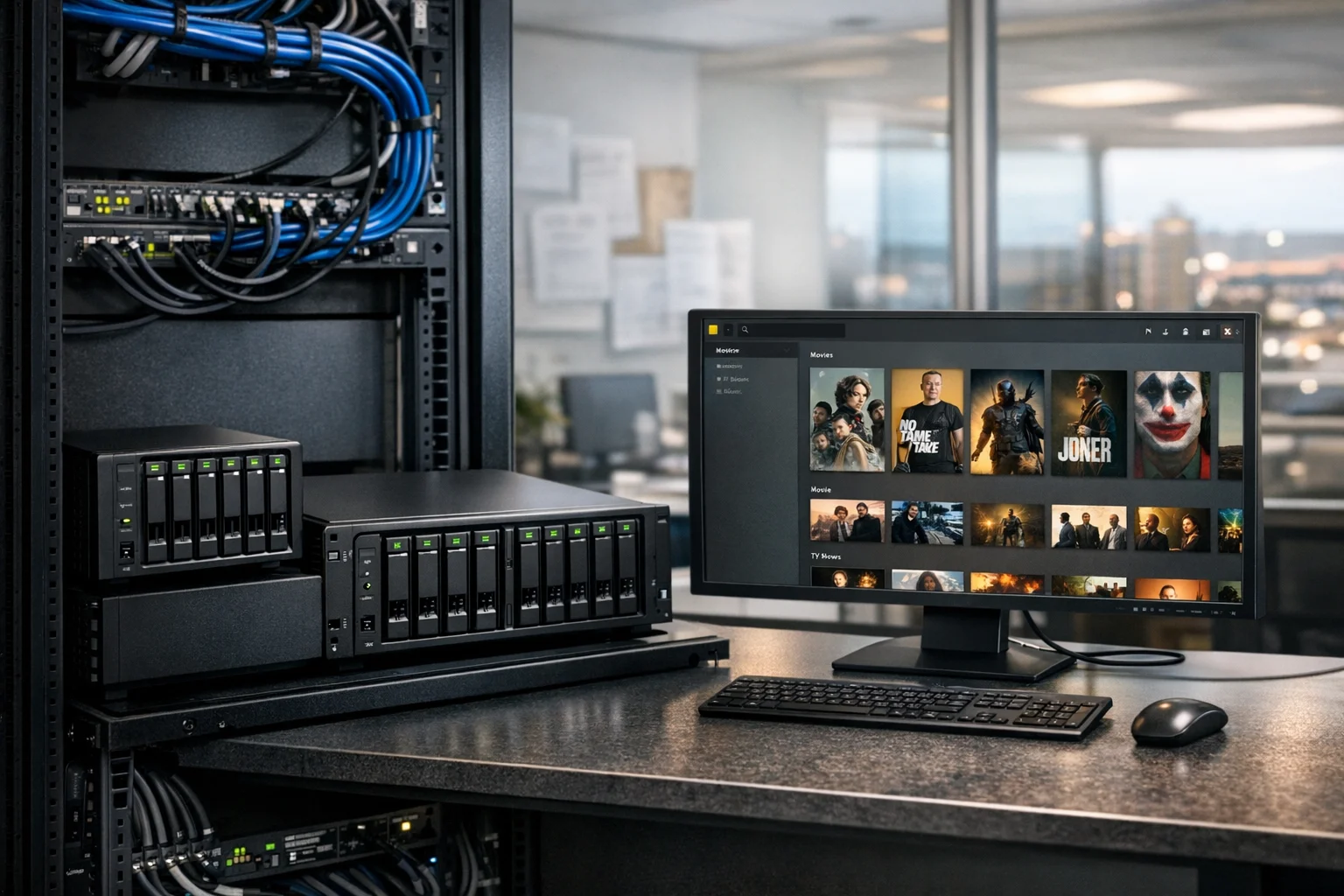
If your library is growing, storage layout matters even more. SiteLiftMedia put together a deeper guide on choosing storage for a growing Plex media server if you’re planning capacity, redundancy, and performance together.
Don’t ignore the OS and background jobs
A Plex server that shares resources with backup agents, sync platforms, VM workloads, or container sprawl can become unpredictable. Watch CPU usage, disk queues, memory pressure, and scheduled tasks during the exact times users complain about buffering.
This is especially common in small businesses where one system slowly turns into the box that does everything. It hosts file shares, a few containers, security tools, and a media stack because it had spare room at one point. Then it becomes critical, and nobody is quite sure what’s consuming resources.
That’s where disciplined system administration makes a real difference.
Tune the Plex settings that actually affect performance
Plex has plenty of settings, but only a handful tend to make a meaningful difference on a local network.
- Enable hardware acceleration if your hardware and Plex plan support it.
- Set local quality to maximum on client devices to avoid unnecessary downscaling.
- Review subtitle settings and avoid burn-in behavior unless it’s necessary.
- Disable video stream conversion on clients that already support the source format.
- Check library scanning schedules so heavy indexing doesn’t run during peak use.
- Limit unnecessary background tasks such as intro detection or deep analysis during business hours.
If Plex is running in a virtualized environment, also confirm that storage mounts, CPU allocation, and passthrough settings are correct. A good virtual host can be very stable, but only when it’s configured properly. If you’re running Plex in a lab or business environment built on Proxmox, this guide on how to secure a Proxmox server before production use is a useful companion read, especially if your media server shares infrastructure with other services.
Use better client devices when playback matters
Smart TV apps are convenient, but they’re often the weakest link in the chain. Built-in TV clients can be slow to update, limited in codec support, and inconsistent with subtitle rendering. If you want reliable Plex playback, especially for high bitrate media, a stronger dedicated client usually pays off.
Apple TV, Nvidia Shield, quality Roku models, and certain modern streaming devices tend to outperform random built-in TV apps. In office and presentation environments, using the same client hardware across rooms also cuts down troubleshooting time.
Consistency matters. If one room has an older smart TV app, another has a bargain streaming stick, and a third uses a newer set-top box, your Plex results will vary for reasons that have nothing to do with the server.
Keep the server secure and stable if it runs all the time
A Plex server is often treated like a hobby box until it becomes important. Then suddenly it’s storing valuable media, training materials, or internal assets, and it’s expected to work every day. That’s when business website security habits and server hardening habits should carry over into the rest of your environment.
If your media is hosted on a NAS, review permissions, snapshots, update policies, and exposure risks. Don’t leave file shares wide open just because the server sits inside the building. Plenty of network incidents start internally, and ransomware doesn’t care whether the data was marketing collateral or family video archives.
If your setup uses TrueNAS, SiteLiftMedia also has a practical guide on securing TrueNAS and protecting shared business files. That’s especially useful when Plex is one service among many on shared storage.
This is where our broader work overlaps. The same team that helps clients with custom web design, website maintenance, penetration testing, cybersecurity services, and business website security also helps them clean up the infrastructure that supports daily operations. For a lot of growing companies, the website stack and the internal network stack are more connected than they realize.
Look for hidden bottlenecks outside Plex
Some of the most stubborn streaming issues are caused by things that don’t look related to media at first glance.
DNS and name resolution issues
If clients are slow to discover or connect to the server, poor local DNS configuration can add friction. This won’t always cause mid-stream buffering, but it can make the whole system feel flaky.
Antivirus and endpoint security scans
On Windows servers especially, aggressive real-time scanning can interfere with media access, metadata directories, and database responsiveness. You don’t want to weaken security, but you do want sensible exclusions based on your actual Plex paths and workloads.
NAS sleep settings and power saving modes
Spinning drives down too aggressively can delay startup and make users think Plex is broken. Likewise, server CPU power settings can create performance swings under load. For always-available streaming, stability usually matters more than squeezing out tiny power savings.
Concurrent office traffic
If marketing teams are uploading large creative assets, cloud backups are firing off, and conference rooms are streaming video at the same time, your core switch or storage uplink may be the real choke point. This is common in companies investing in social media marketing, content production, and media-heavy campaigns. The more video you handle, the more your local infrastructure matters.
Why this matters for growing businesses in Las Vegas and beyond
In a fast-moving market like Las Vegas, companies often focus on the customer-facing layer first. That makes sense. You need strong branding, a polished site, better rankings, and measurable lead flow. We help with that every day through Las Vegas SEO, SEO company Las Vegas strategy, local SEO Las Vegas campaigns, backlink building services, technical SEO, and web design Las Vegas projects.
But internal performance issues can quietly drag down the teams responsible for those outcomes. If your office network struggles with local media delivery, the same environment may also be hurting file access, cloud app responsiveness, security posture, and team productivity. The infrastructure layer doesn’t just support Plex. It supports content operations, website maintenance, creative review, and everyday execution.
That’s one reason SiteLiftMedia looks at these problems through both a marketing and technical lens. When we look at a network or server, we’re not just asking whether it powers on. We’re asking whether it supports the business cleanly, securely, and without wasting staff time.
A practical troubleshooting order that saves time
If you want the fastest route to a better Plex experience, use this order:
- Check the Plex dashboard and confirm whether playback is direct play, direct stream, or transcode.
- Test with a known-good client device on a wired connection.
- Disable subtitles temporarily and compare results.
- Verify the server and client links are negotiating at expected speeds.
- Move Plex metadata to SSD if it’s still on slow bulk storage.
- Enable and validate hardware transcoding if your hardware supports it.
- Review background tasks, sync jobs, and competing workloads during playback windows.
- Standardize media formats for the clients you actually use.
- Review NAS, VM, or container configuration if Plex shares infrastructure.
- Harden and maintain the environment so small issues don’t turn into recurring problems.
That sequence usually reveals the bottleneck much faster than randomly changing settings.
If your Plex server is part of a larger office, home office, or mixed business environment and you want it running the right way, SiteLiftMedia can help audit the network path, storage design, playback compatibility, system administration, and security posture behind it. If you’re in Las Vegas, Nevada, or managing locations nationwide, reach out and we’ll help you fix the underlying setup instead of chasing symptoms.
Photo Gallery