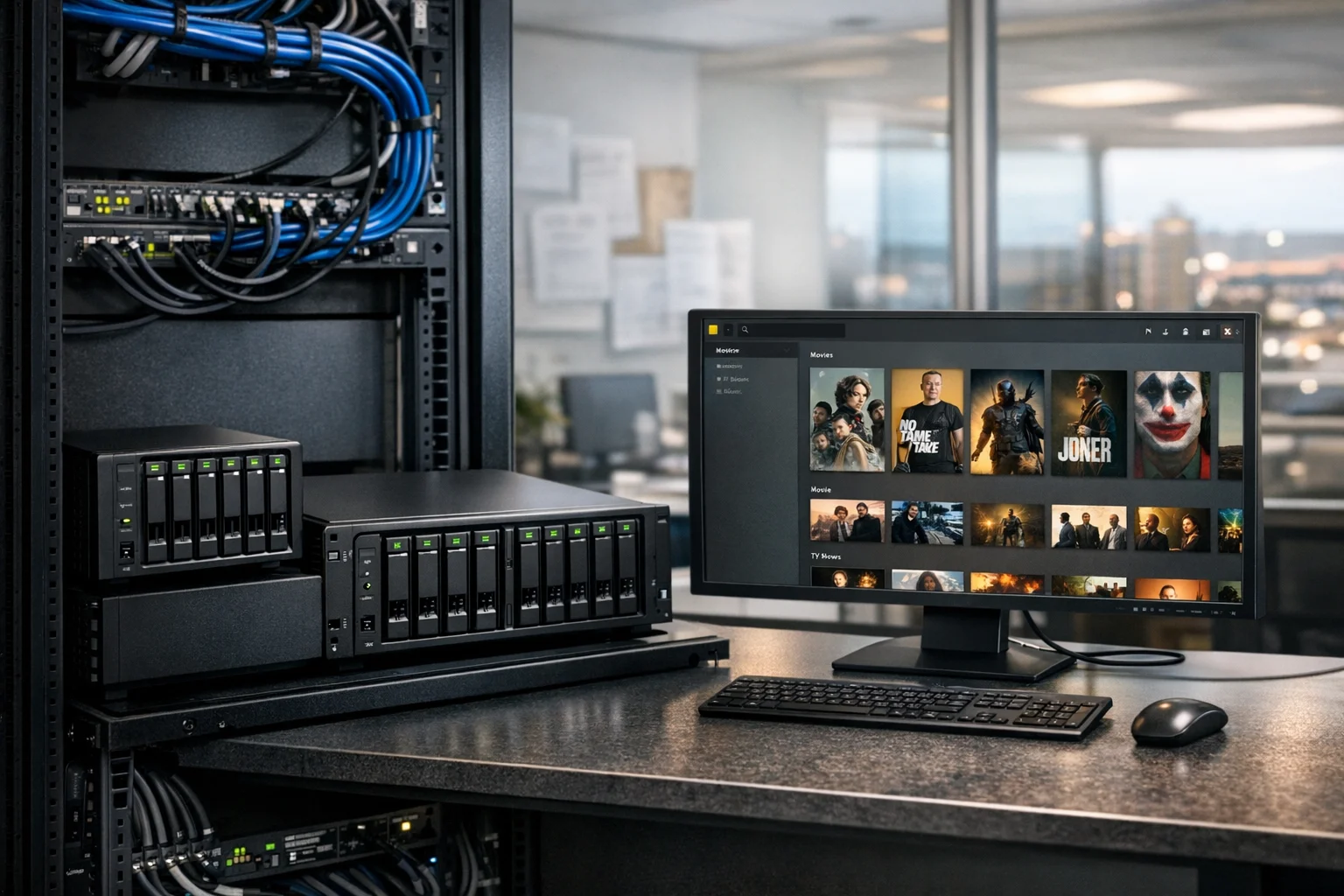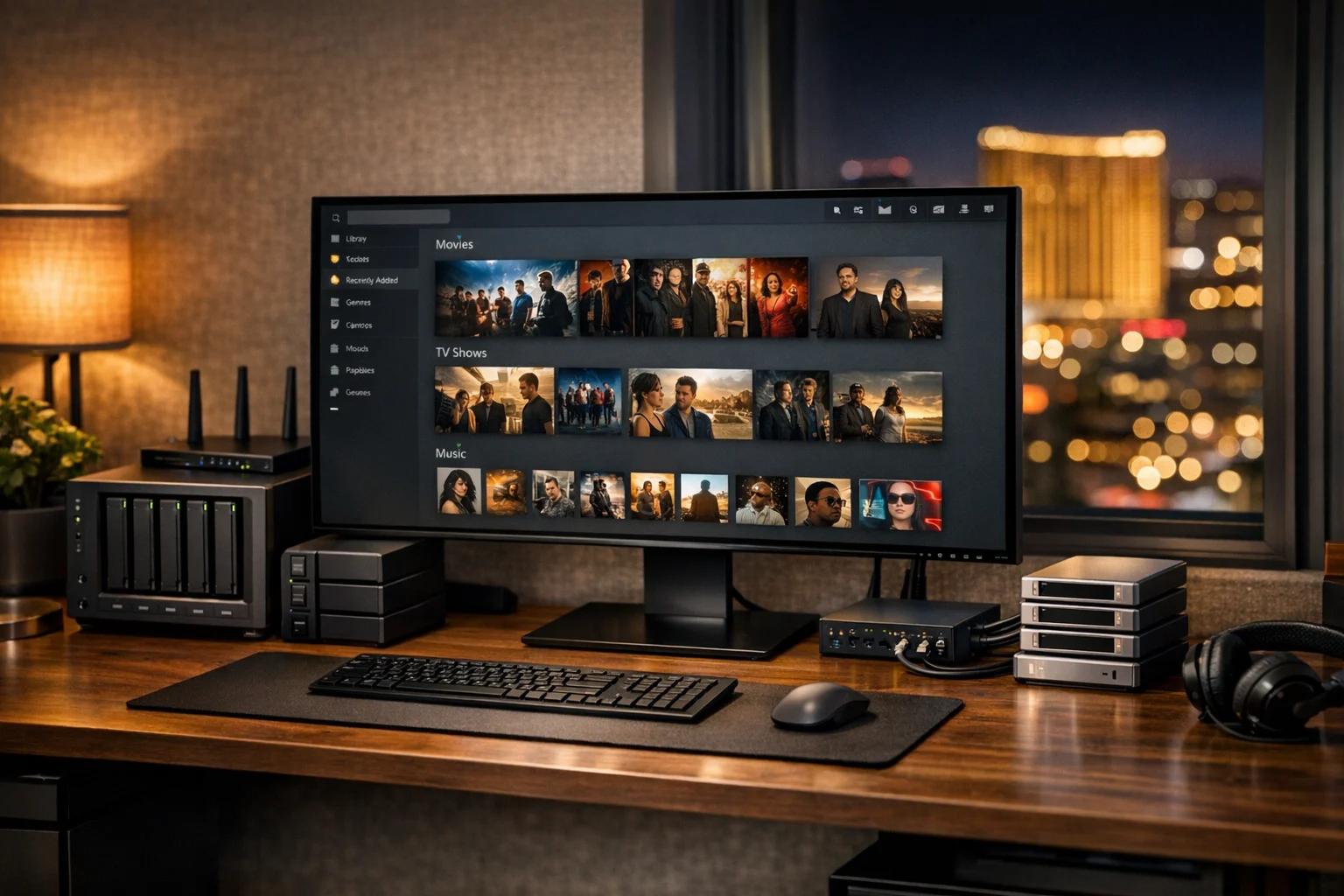
A Plex server can have plenty of storage, a fast processor, and a solid network setup, then still feel frustrating to use. The problem usually isn’t raw hardware. It’s library organization.
When your movies, shows, music, and home videos are scattered across random folders with inconsistent file names, Plex has to guess what everything is. Sometimes it guesses right. Sometimes it doesn’t. That leads to wrong posters, missing episodes, duplicate titles, bad search results, and a streaming experience that feels sloppy.
If you want Plex to feel polished, fast, and easy to browse, organize the libraries before you start tweaking advanced settings. That’s true whether you’re running a personal media setup at home, sharing a server with family, or managing a more serious home lab or small business environment.
At SiteLiftMedia, we spend a lot of time helping clients improve digital systems that feel disorganized or underperforming. Most of that work happens in areas like technical SEO, website maintenance, system administration, server hardening, and business website security, especially for companies looking for a reliable partner in Las Vegas, Nevada. But the same real-world principle applies to Plex. When the structure is right, everything works better.
Here’s how to organize Plex libraries for a better streaming experience, with practical steps that make the server easier to manage and far more enjoyable to use.
Why Plex library organization matters more than people think
Plex isn’t just a video player. It’s a media indexing system. It scans your folders, reads file names, tries to identify each item, pulls metadata, and builds a browsing interface around what it finds. That means your media library experience is only as good as the structure underneath it.
Good organization improves several things at once:
- Accurate metadata so Plex pulls the right title, poster, cast, and summary
- Faster browsing because categories and collections make sense
- Better search results when titles are named correctly
- Fewer duplicate entries caused by messy folder structures
- Simpler remote sharing when libraries are separated by audience or content type
- Easier maintenance when you need to move files, expand storage, or rebuild a server
That last point matters a lot. A disorganized Plex server gets harder to manage as it grows. Ten movies thrown into a single folder is annoying. Ten thousand mixed files across several drives becomes a real operational problem.
If you’ve already improved your network but still get uneven playback or a messy browsing experience, it’s worth reviewing how to improve Plex streaming on your local network alongside your library cleanup. Streaming quality and library structure work together.
Start with a folder structure Plex actually understands
The biggest fix is also the most basic: create a clean top-level folder structure and stick to it. Don’t mix movies and TV episodes in the same directory. Don’t dump extras, concert footage, trailers, and personal videos into your main movie library unless you want matching problems.
A simple, dependable structure looks like this:
- Movies
- TV Shows
- Music
- Home Videos
- Documentaries if you want them separate
- Kids if you want a filtered family-friendly library
Each of those should live in its own main folder. From there, every library in Plex should point to the right content and only that content. This sounds obvious, but a lot of Plex setups break because one library is pulling from multiple unrelated folders that were built over time with no plan.
Movies should have one folder per title
For movies, the safest structure is one movie per folder, named clearly with the release year. For example:
- Movies/The Matrix (1999)/The Matrix (1999).mkv
- Movies/Dune (2021)/Dune (2021).mp4
Including the year matters. It helps Plex distinguish between remakes, sequels with similar names, and titles that share common words.
If you have special editions, extras, or alternate versions, keeping them inside the movie folder makes management easier. Just name them in a way Plex can interpret, or keep them as separate versions if you use version naming conventions consistently.
TV shows need season-based organization
TV content should be even more structured. Use a show folder, then season folders, then episode files with season and episode numbers. For example:
- TV Shows/Breaking Bad/Season 01/Breaking Bad - s01e01.mkv
- TV Shows/Breaking Bad/Season 01/Breaking Bad - s01e02.mkv
This is where many Plex libraries fall apart. Episodes get labeled with air dates only, local recording names, or random abbreviations. Plex needs predictable naming. If your files don’t match standard patterns, metadata becomes unreliable fast.
Use separate folders for home videos and personal media
Business owners and technically inclined users often have more than commercial movies and shows on their server. Maybe it’s conference recordings, internal training sessions, trade show footage, drone videos, or family archives. Keep that content out of your standard movie and TV libraries unless it’s properly named and meant to match public databases.
Home videos should live in a dedicated folder and usually a separate library type. That prevents Plex from trying to match your company event reel to a theatrical release with a similar name.
Use separate libraries for different audiences and use cases
One of the smartest ways to make Plex feel cleaner is to split content into purpose-based libraries. This doesn’t just help visually. It improves access control, reduces clutter, and makes content discovery easier.
Useful library splits include:
- Main Movies for your core film collection
- Kids Movies for family-safe browsing
- TV Shows separate from films
- Documentaries if you want a more focused browsing experience
- Concerts or Live Performances if you have a large niche collection
- Training or Internal Media for business-related video content
This is especially valuable if multiple people use the server. A spouse, children, roommates, or extended family members will all browse differently. Separate libraries reduce friction and make the interface feel intentional instead of overloaded.
For business-minded readers, think of it like site architecture. A well-organized Plex setup is similar to good custom web design or strong technical SEO. If all your content is jammed into one massive bucket, users have to work harder to find what they need. Clean separation improves usability.
That same mindset is why companies looking for web design Las Vegas, local SEO Las Vegas, or a dependable SEO company Las Vegas often benefit from a structural cleanup before chasing new traffic. Organized systems perform better, whether it’s a website or a media server.
Fix naming before you touch advanced Plex settings
A lot of users try to solve library issues by refreshing metadata, changing agents, or manually fixing matches item by item. That can help in small cases, but if the naming is inconsistent, you’re treating the symptom instead of the cause.
Before you do anything else, standardize file and folder names.
For movies:
- Use the exact title
- Include the release year
- Avoid extra clutter in the folder name
- Keep edition details separate if needed
For TV shows:
- Use the series title consistently
- Name season folders clearly
- Use s01e01 style formatting
- Use one numbering source consistently if the show has specials or unusual episode ordering
Bad examples include file names with codec info at the front, uploader names, random release tags replacing the title, or folder names like “New Stuff” and “Watch Later.” Plex can work around some mess, but not all of it.
If you’ve inherited a large, messy library, bulk renaming tools can save hours. The key is to settle on one standard and apply it across the entire collection. Once that’s done, refresh the library and let Plex scan again.
Organize collections, posters, and sort titles for cleaner browsing
Once the file structure is solid, the next step is making Plex easier to browse. This is where you stop thinking only like a server admin and start thinking like an end user.
Collections are one of the best tools Plex gives you. Use them to group franchises, directors, genres, or curated themes. That keeps the main library from feeling chaotic while helping users find related content faster.
Examples include:
- Marvel Cinematic Universe
- Star Wars
- Holiday Movies
- Oscar Winners
- Family Movie Night
Posters matter too. If a library has mismatched artwork styles, duplicate covers, and inconsistent backgrounds, it feels less polished. It sounds cosmetic, but presentation changes how people use the platform. A clean visual experience encourages browsing instead of making it feel like a file dump.
Sort titles are another underrated fix. Some movie names beginning with “The” or franchise titles with subtitles can appear awkwardly in alphabetical order. Adjusting sort titles gives you a cleaner library layout without changing the actual display title.
This part of Plex management is a lot like the content presentation work we do for SiteLiftMedia clients. Strong design and architecture improve how users move through information. That matters on a streaming server just as much as it matters in social media marketing campaigns, landing pages, or content hubs built to support Las Vegas SEO.
Set up libraries around streaming performance, not just neatness
Organization isn’t only about looks. It affects performance too.
For example, a massive all-in-one library can take longer to scan, update, and maintain. Breaking content into logical libraries can reduce management headaches and make it easier to pinpoint issues when something fails to match or display correctly.
You should also think about the kinds of files inside each library. If your remote users are streaming to phones, tablets, hotel TVs, or older smart TVs, mixed file types and extreme bitrate differences can create a clunky experience. A well-organized Plex server makes it easier to identify which files might need optimization.
Consider these practical choices:
- Keep ultra-high-bitrate 4K remux files in a dedicated library if only a few devices can handle them well
- Use separate libraries or labels for mobile-friendly versions when needed
- Store frequently watched content on faster drives
- Keep rarely used archives on slower or secondary storage
If your Plex server is expanding quickly, storage planning becomes part of organization. A random pile of USB drives can work for a while, but it tends to create naming conflicts, broken paths, and maintenance headaches later. If you’re planning for growth, this guide on how to choose storage for a growing Plex media server is worth reading before your library gets harder to manage.
Use naming and tagging rules that make sharing easier
Shared Plex servers need more discipline than private ones. If multiple people are using the same setup, your naming, collections, ratings, and access settings should reflect that reality.
Some practical tips:
- Keep mature content in separate libraries if children or clients have access
- Use labels and restrictions where appropriate
- Avoid duplicate copies of the same movie spread across different folders
- Document your folder rules so future additions match the system
That last one matters more than people expect. A Plex library usually doesn’t get messy all at once. It gets messy because every new file is added a little differently until the whole structure loses consistency.
If you’re the person in your company or household who ends up maintaining everything, treat your Plex library like a real environment. Write down the standard. A basic note with naming patterns, folder rules, and storage locations can prevent hours of cleanup later.
Keep storage, backups, and server health under control
A well-organized library isn’t just folders and titles. It also depends on a stable storage foundation.
If the media is scattered across failing drives, loose shares, or poorly mounted network paths, Plex will behave unpredictably. Posters disappear, content goes unavailable, scans fail, and users start thinking Plex itself is the problem when the real issue is storage health.
Some essentials here:
- Use consistent mount points
- Label drives clearly
- Monitor drive health
- Back up Plex metadata if the server matters to you
- Keep a copy of your naming and folder structure plan
For users building a more robust setup, especially in a home lab or small office environment, using TrueNAS for a reliable home lab storage server can make the whole environment easier to manage.
This is also where our work at SiteLiftMedia overlaps with hobby infrastructure more than people expect. Clients often come to us for website maintenance, system administration, or cybersecurity services, then realize the bigger issue is underlying technical organization. The same applies to a Plex server. A little structural discipline prevents a lot of instability.
Don’t ignore security and remote access hygiene
If your Plex server is accessible outside your home or office, organization should include access discipline too. Better streaming isn’t only about file names. It’s also about who can reach the server and how safely it’s exposed.
At minimum:
- Use strong account credentials
- Review which users have access to which libraries
- Remove old shares that no longer need access
- Keep the OS and Plex server updated
- Secure the machine hosting Plex
For business owners reading this, the point should sound familiar. Clean access control and disciplined maintenance are part of any healthy system. It’s the same mindset behind server hardening, penetration testing, and business website security. Sloppy permissions create avoidable risk.
Even if Plex is a side project, the machine running it often touches your broader network. That’s one reason technically inclined companies in Nevada and beyond often ask SiteLiftMedia for infrastructure cleanup alongside digital marketing services. They may start by searching for Las Vegas SEO or backlink building services, then discover they also need help with technical systems, cybersecurity services, or content platforms that are harder to maintain than they should be.
Common Plex organization mistakes that create a worse experience
If your server feels harder to use than it should, one of these issues is usually involved:
- Mixing movies and TV in one folder
- Using inconsistent names for similar content
- Storing multiple versions of a file in random locations
- Creating one giant library instead of separating content logically
- Letting downloads land directly in permanent library folders without cleanup
- Ignoring unmatched or incorrectly matched media
- Using temporary folder names that never get corrected
- Forgetting that other users need a cleaner interface than the admin does
Another common mistake is focusing only on acquisition and not on maintenance. It’s easy to keep adding media while postponing cleanup. Then months later, nobody wants to touch the mess.
The better approach is to organize as you go. Every new movie gets the right folder. Every new season goes into the right structure. Every new library follows a naming rule. That’s how you keep Plex usable long term.
Why this matters to business owners and decision makers
On the surface, Plex library organization might sound like a hobby topic. In practice, it appeals to many of the same people responsible for business systems, digital assets, and technical oversight.
Business owners and marketing managers tend to appreciate efficiency. They don’t want to waste time hunting through cluttered systems, whether it’s a media library, a website backend, or a bloated campaign structure. A well-organized Plex environment is a small but clear example of how better structure creates a better user experience.
That’s why this topic often resonates with people who are also thinking about redesign planning, spring marketing pushes, content expansion, or infrastructure cleanup. When you see how much smoother one system works after cleanup, it becomes easier to spot similar opportunities elsewhere.
If you’re in Las Vegas and already looking at a site rebuild, local SEO Las Vegas strategy, social media marketing support, or technical SEO improvements, it helps to work with a team that understands both presentation and technical infrastructure. SiteLiftMedia was built for that intersection. We help businesses clean up what’s under the hood so the customer-facing experience improves too.
When it makes sense to get technical help
Some Plex cleanups are simple. Others turn into full infrastructure projects.
If your media is spread across multiple machines, mapped drives, old NAS devices, and inconsistent shares, a proper reorganization can take planning. The same goes for setups with remote users, mixed transcoding requirements, or storage expansion needs.
You may want help if:
- Your server has grown too large to manage casually
- You keep getting bad metadata matches despite repeated fixes
- Your storage setup is messy or nearing capacity
- You want better access control and system stability
- You’d like a cleaner home lab environment that can grow
That kind of work sits close to what we already do for clients who need system administration, server hardening, website maintenance, and broader digital support. And because many of our clients first find us while searching for terms like SEO company Las Vegas, web design Las Vegas, or Las Vegas SEO, we’re used to working with organizations that need both marketing insight and technical execution.
If your Plex setup is becoming a symptom of a larger organization problem, start by cleaning the folder structure, naming files correctly, and splitting content into sensible libraries. If you’d rather have experienced technical hands help you sort the system, stabilize the environment, and clean up related infrastructure, contact SiteLiftMedia to map out the next step.
Photo Gallery